Table service
Running an open tab against a table: seating, adding rounds, fixing an order, settling up and voiding.
See the room
Tap the table icon in the top bar to open Table board. Free tables are white and say Free; occupied tables are green and show the running total.
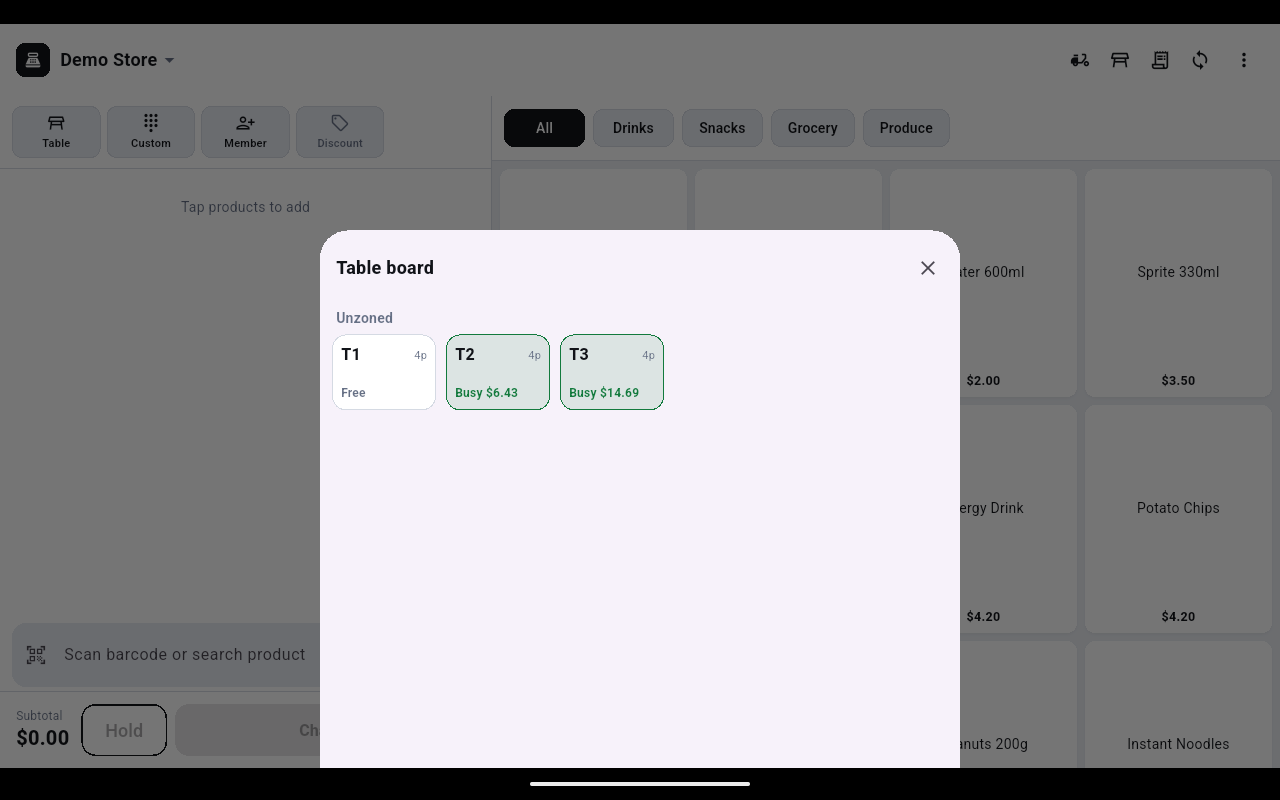
Start a table
- Tap the Table tile on the left of the register and pick a table from Select table. The tile turns green and shows the table number, and the footer reads Table T1 · new.
- Ring the items up as normal.
- Tap Save to table. The items go onto the table's tab, the cart clears, and the footer updates to show the table's running count and total.
Saving to a table is also what sends the order to the kitchen. If there is no kitchen printer or screen reachable, a red bar tells you the ticket did not go through — take the docket over by hand.
Add another round
- Open Table board and tap the table. A panel lists everything already ordered and the running total.
- Tap Order. You are back at the register with that table attached.
- Add the new items and tap Save to table again.
Fix an order that is already on the table
- With the table attached, tap Edit at the right of the footer line.
- Use − to drop the quantity or the red bin to take the whole line off. Removed lines stay visible, struck through and marked (removed), and the Total updates as you go.
- Tap Save changes. A green message confirms the new table total.
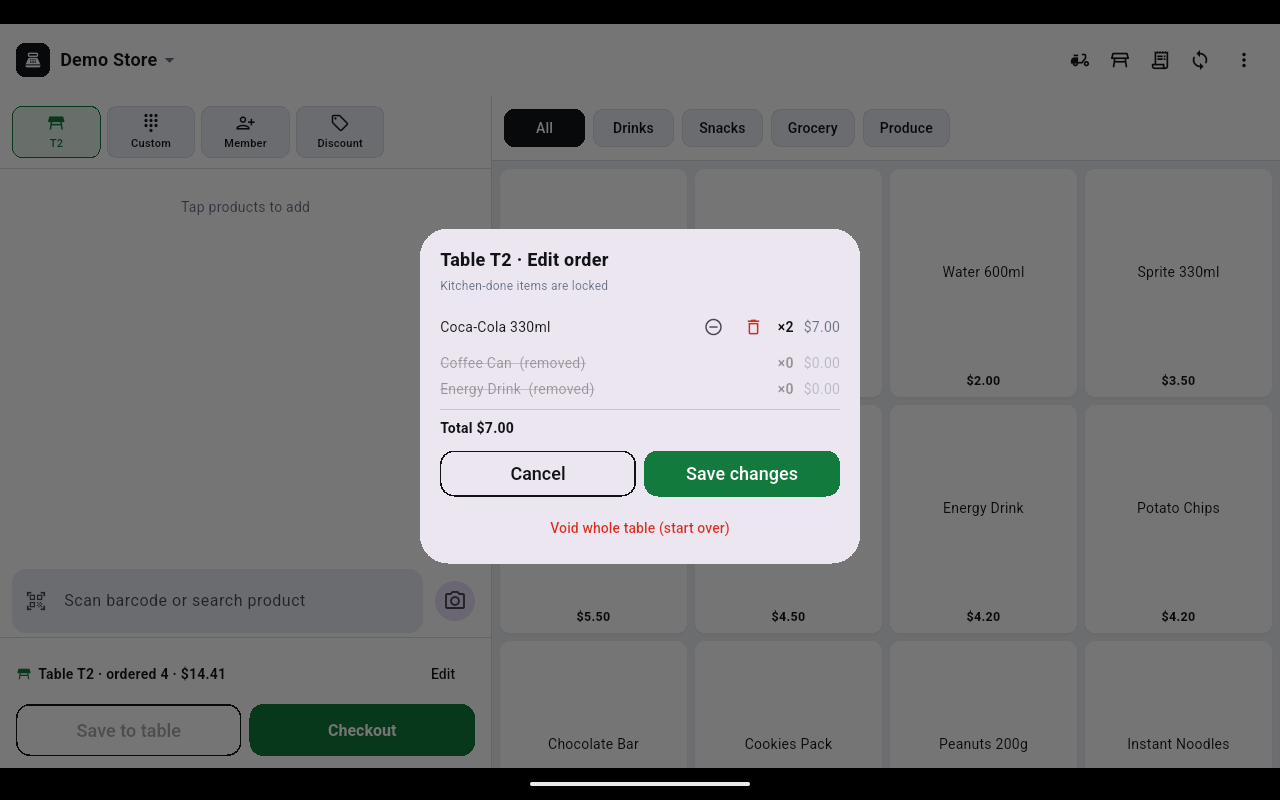
Anything the kitchen has already marked done is locked and cannot be removed here — the dialog says Kitchen-done items are locked. Sort those out with a refund after the table has paid.
Settle the table
- Open the table from Table board and tap Check out, or tap Checkout in the register footer while the table is attached.
- The payment screen opens with the table's whole tab. Take payment as usual.
- When the payment goes through, the tab closes and the table goes back to Free on the board.
Table checkouts do not offer the gift card or points buttons — only the normal payment methods.
Void a table
In the Edit order dialog, Void whole table (start over) cancels everything ordered on that table and frees it. Use it when a table walks out or the whole order was rung against the wrong number.