Reservations and waitlist
Per-branch task for table service. Guests book a table ahead on your e-shop; walk-ins waiting for a table go on the waitlist. Both are managed from this one page.
Turn it on for a branch
- Click Store details and confirm the branch.
- Under Store operations, turn on Accept reservations (dine-in) to let guests book ahead, and Waitlist queue to run a walk-in queue.
- Click Save.
Manage the day's bookings
- Click Reservations & Waitlist and confirm the branch. The Reservations tab opens first.
- Filter with Upcoming, Completed, Cancelled or All, and click Refresh to pull the latest.
- Each row shows the booking When, Party size, Customer with phone and any note, the Status, the assigned Table, and the prepaid Order code with its amount and payment state.
- When the guest arrives, click Seat and pick their table — the row moves to Seated. Click Complete once they leave.
- Use Cancel if they call off the booking, or No-show if they never arrive.
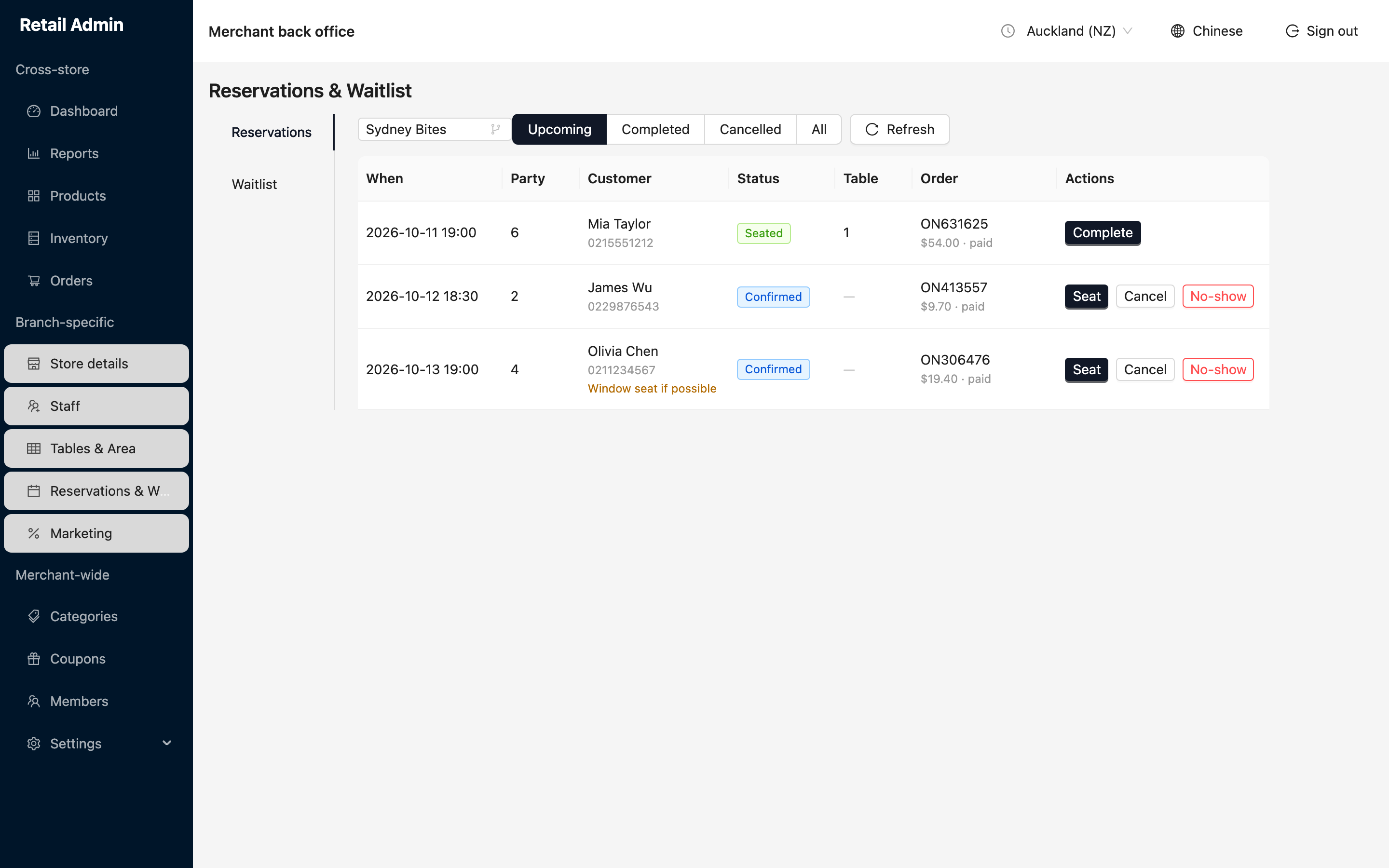
Bookings are created by guests on the e-shop, where they choose a time, party size and prepay — so there is no "new reservation" button here. This page is where you run them on the day.
Run the walk-in waitlist
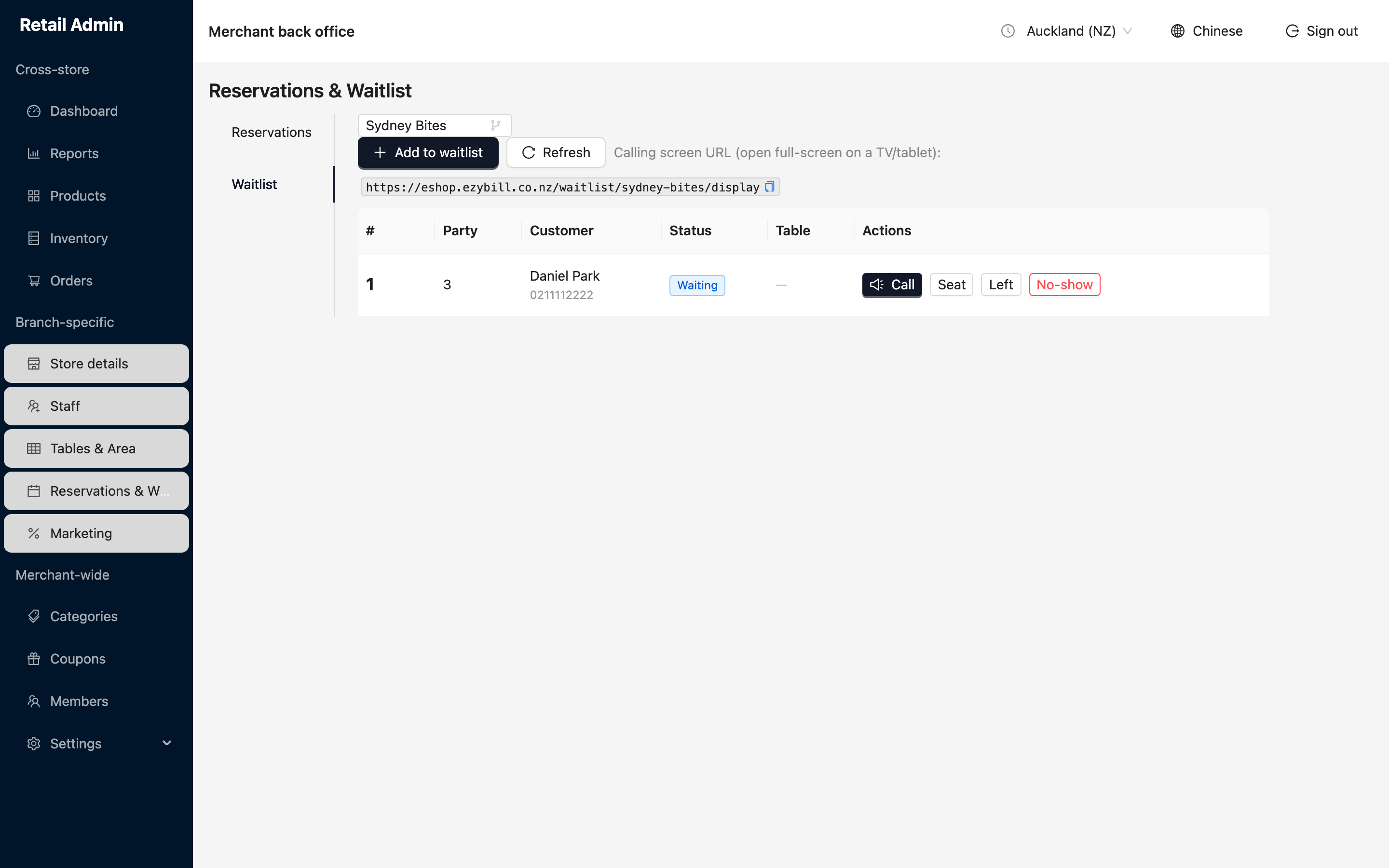
- Click the Waitlist tab.
- Click Add to waitlist to record a walk-in party, or let guests take a number themselves from the self-order screen.
- Each ticket shows its #, Party size, Customer and Status. Click Call when their table is ready, Seat to seat them, Left if they give up, or No-show if they do not answer.
- Copy the Calling screen URL and open it full-screen on a TV or tablet in the waiting area so guests can watch for their number.