Delivery and pickup orders
Orders that arrive from delivery channels rather than from the counter, and the three taps that move each one along.
Work the queue
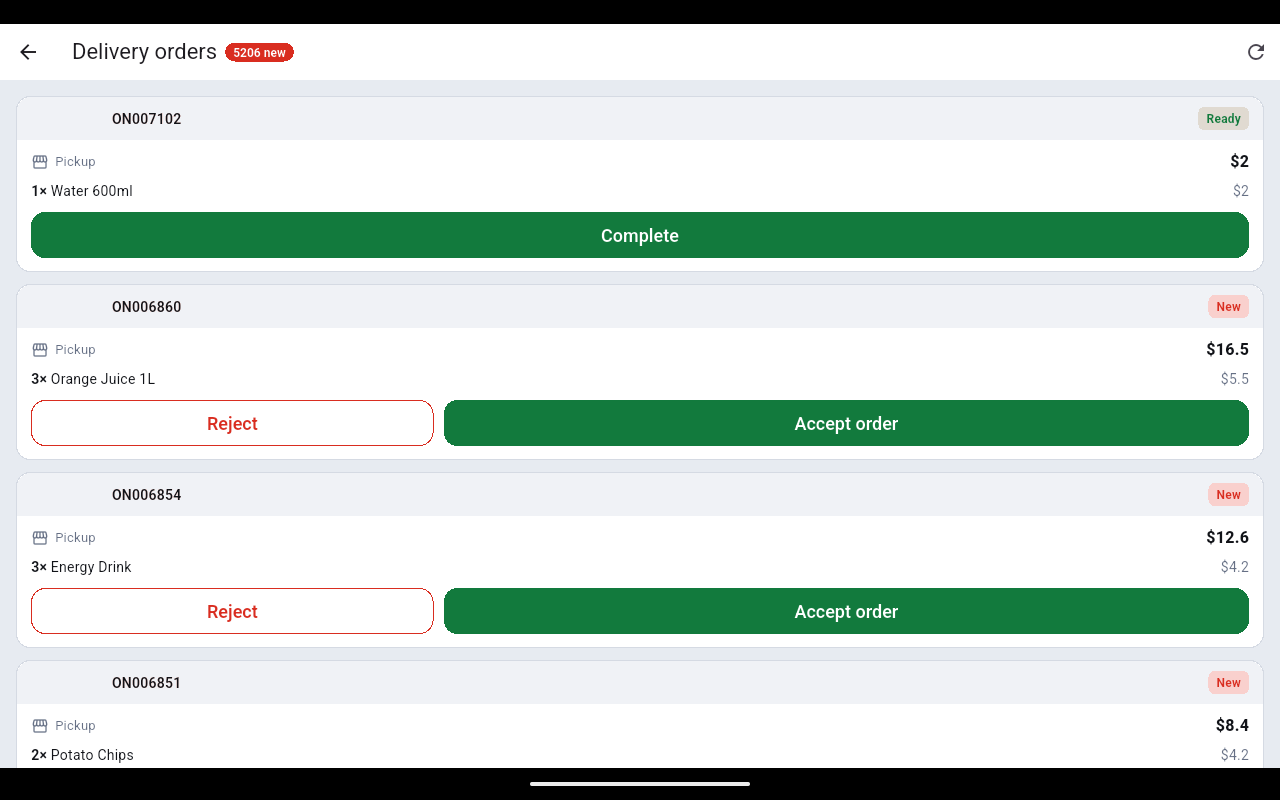
- Tap the scooter icon in the top bar. Delivery orders opens with a badge showing how many are new.
- Each card shows the channel it came from, the order number, whether it is Pickup or delivery, the items and the total.
- Tap Accept order. The card turns to Accepted and the kitchen ticket goes out. Tap Reject instead if you cannot make it.
- When the food is up, tap Mark ready. The card turns to Ready.
- When the driver or customer takes it, tap Complete. The card leaves the list.
Accepting an order prints the kitchen ticket. If no kitchen printer or screen is set you get the same red bar as a table order — check the kitchen has the docket before you walk away.