Stock control
Receive deliveries, write off waste and run counts, and see every movement that changed a stock figure.
Adjust stock
- Click Inventory. The table shows Stock (SOH) and Cost per product, with a Store column while All shops is selected.
- Find the product with Search product, then click Stock in/out · count on its row.
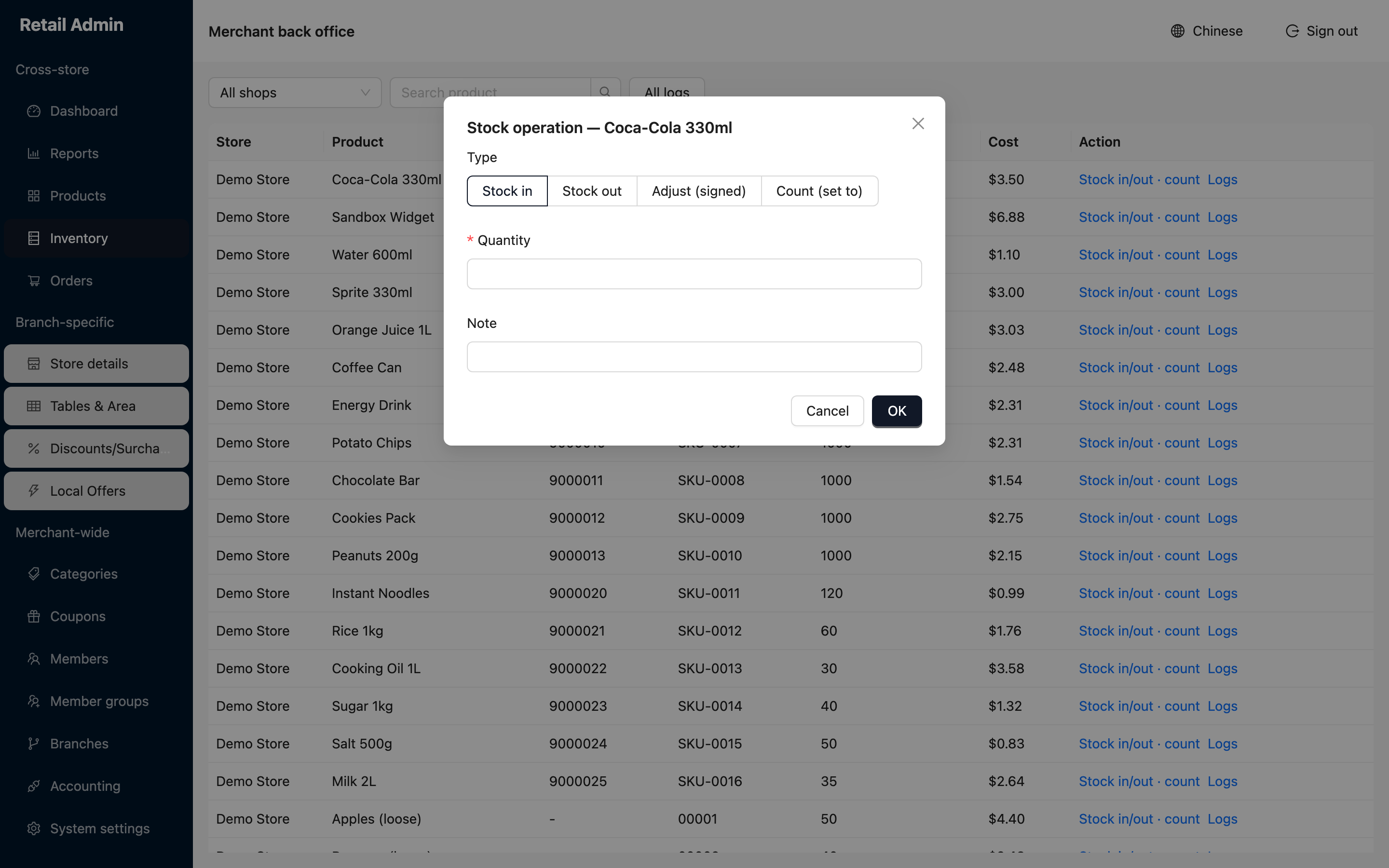
- Choose the Type:
- Stock in — a delivery arrived; the quantity is added.
- Stock out — waste, breakage or a transfer out; the quantity is removed.
- Adjust (signed) — a correction, entered as a positive or negative number.
- Count (set to) — a stocktake; the figure you enter becomes the new stock on hand.
- Enter the Quantity, add a Note so the reason survives in the log, and click OK. The row's stock figure updates.
Check the history
- Click Logs on a row for that product's movements, or All logs above the table for everything.
- The drawer lists Time, Product, Type, Change, Before, After and Note, newest first.
- Sales appear here on their own — a line of type
salewhose note names the order it came from — so a figure that dropped overnight can be traced to the orders that moved it.