Shift and cash-up
What the person opening and closing the till does: float in, cash movements during the day, count down and read the variance.
Open the shift
- Tap ⋮ → Shift / Cash-up. With no shift running the screen says No open shift.
- Key the float you are putting in the drawer into Opening float.
- Tap Open shift. The message Shift opened appears and the running totals start from zero.
Check the shift during the day
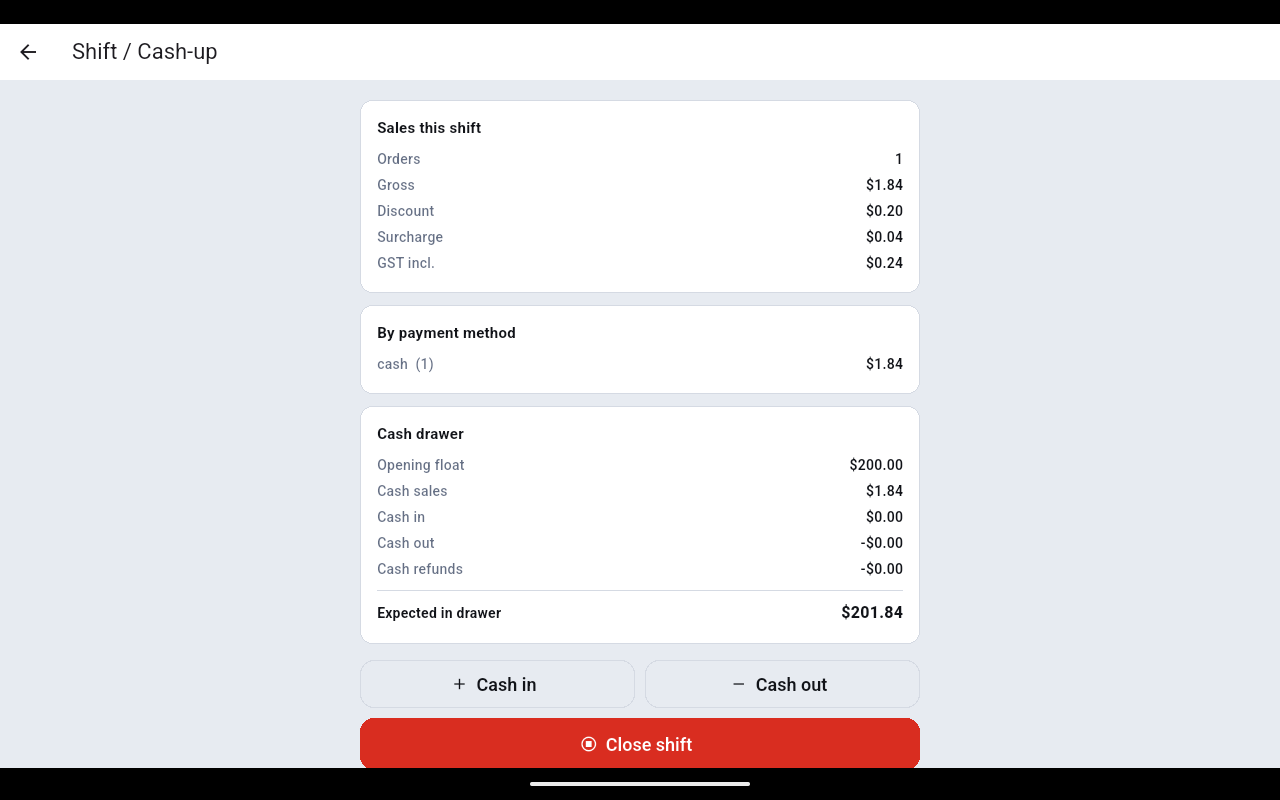
- Sales this shift — order count, gross, discount, surcharge and GST.
- By payment method — a line per method with the number of orders and the amount.
- Cash drawer — opening float, cash sales, cash in, cash out and cash refunds, adding up to Expected in drawer.
Record money in or out of the drawer
- Tap Cash in (a float top-up) or Cash out (a payout, a banking drop).
- Key the Amount, add a Note (optional) saying what it was for, and tap Confirm. The amount moves Expected in drawer.
Every note you take out or put in outside a sale must go through Cash in / Cash out, or the count at the end of the day will not balance.
Close the shift
- Count the drawer.
- Tap Close shift. The dialog reminds you what is expected.
- Key what you actually counted into Counted cash and tap Close.
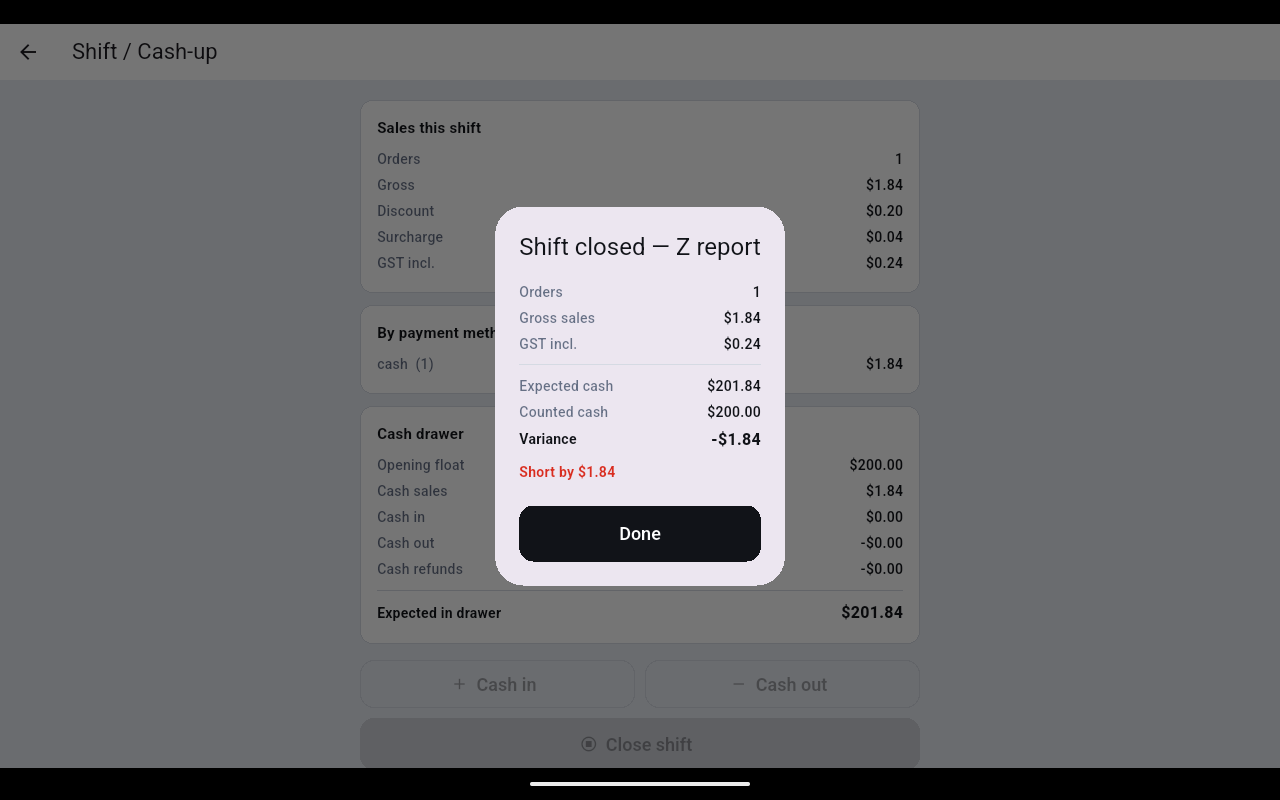
- Shift closed — Z report shows the order count, gross sales, GST, expected cash, counted cash and the Variance, with a line underneath saying how far short or over the drawer is. Tap Done.
Open the drawer without a sale
Tap ⋮ → Open cash drawer. On a device with no built-in receipt printer the till answers No cash drawer detected (needs built-in printer) — there is nothing to pop.
Staff clock
- Tap ⋮ → Staff clock. Each person has a card showing their role and whether they are off or On shift since a time.
- Tap Clock in or Clock out on their card, have them key their PIN and tap OK. A message confirms it and the card updates to show the time they started.
- To add someone, tap Add staff and fill in Name, PIN (4-6 digits) and Role — Cashier or Manager.
The manager PIN that approves refunds is the PIN of a person whose role here is Manager (or the owner account).