Members and discounts
Attaching a customer to the sale, signing up a new one, and taking money off the whole order.
Attach a member
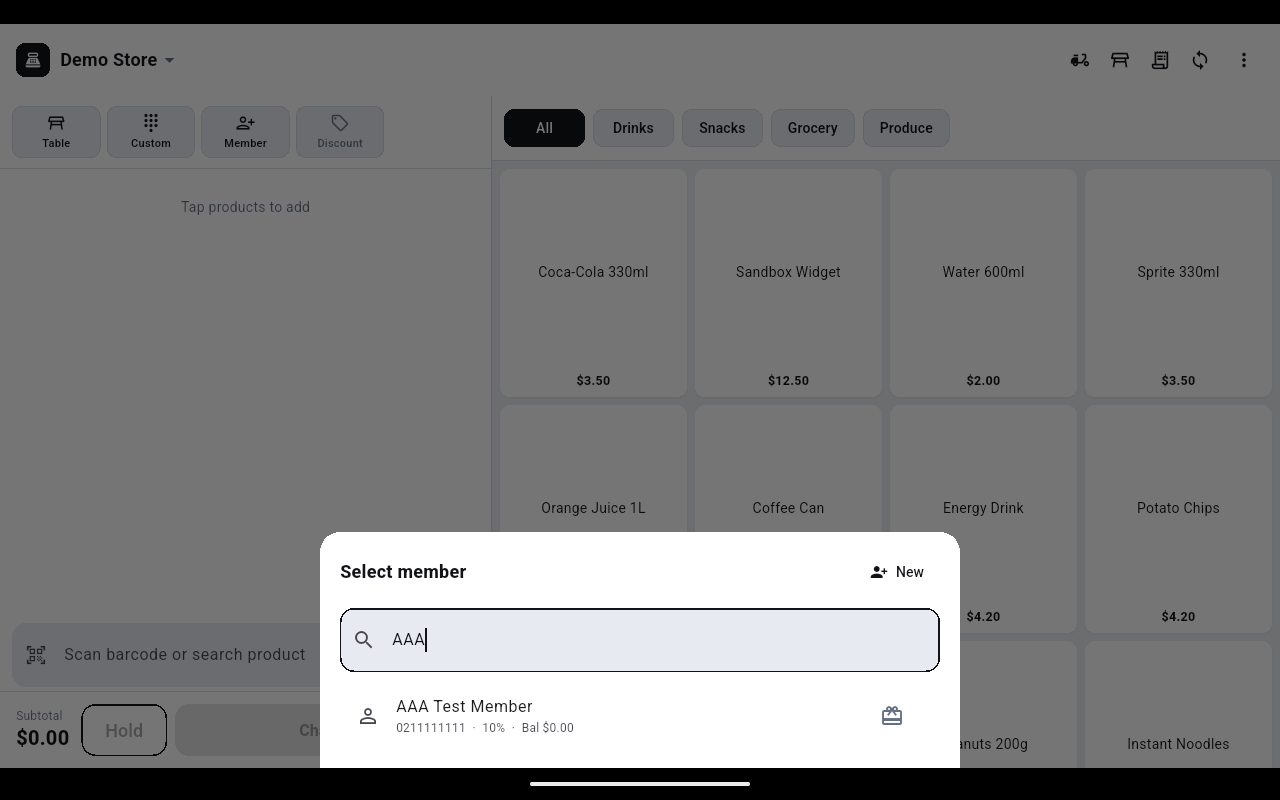
- Tap Member. The Select member sheet opens.
- Type into Search phone / name / card no. Matches appear underneath, each showing the phone number, the member's standing discount and their balance.
- Tap the member. A green chip appears above the cart with their name, discount and point balance, for example
AAA Test Member · -10% · 500p.
Tap the × at the right of the chip to take the member off the sale again. The member's discount is applied when you reach the payment screen, not in the cart, so the cart subtotal stays at full price.
Sign up a new member at the till
- In the Select member sheet, tap New at the top right.
- Fill in Name and, if the customer gives it, Phone (optional). Anything you already typed in the search box is carried into the name.
- Tap Create. The new member is attached to the sale straight away.
Give the member a printed card
- In the Select member sheet, tap the card icon at the right of the member's row.
- Bind membership card opens. Scan or type the number printed on the card into Card number.
- Tap Bind. From then on that number finds the member in the same search box.
Discount the whole order
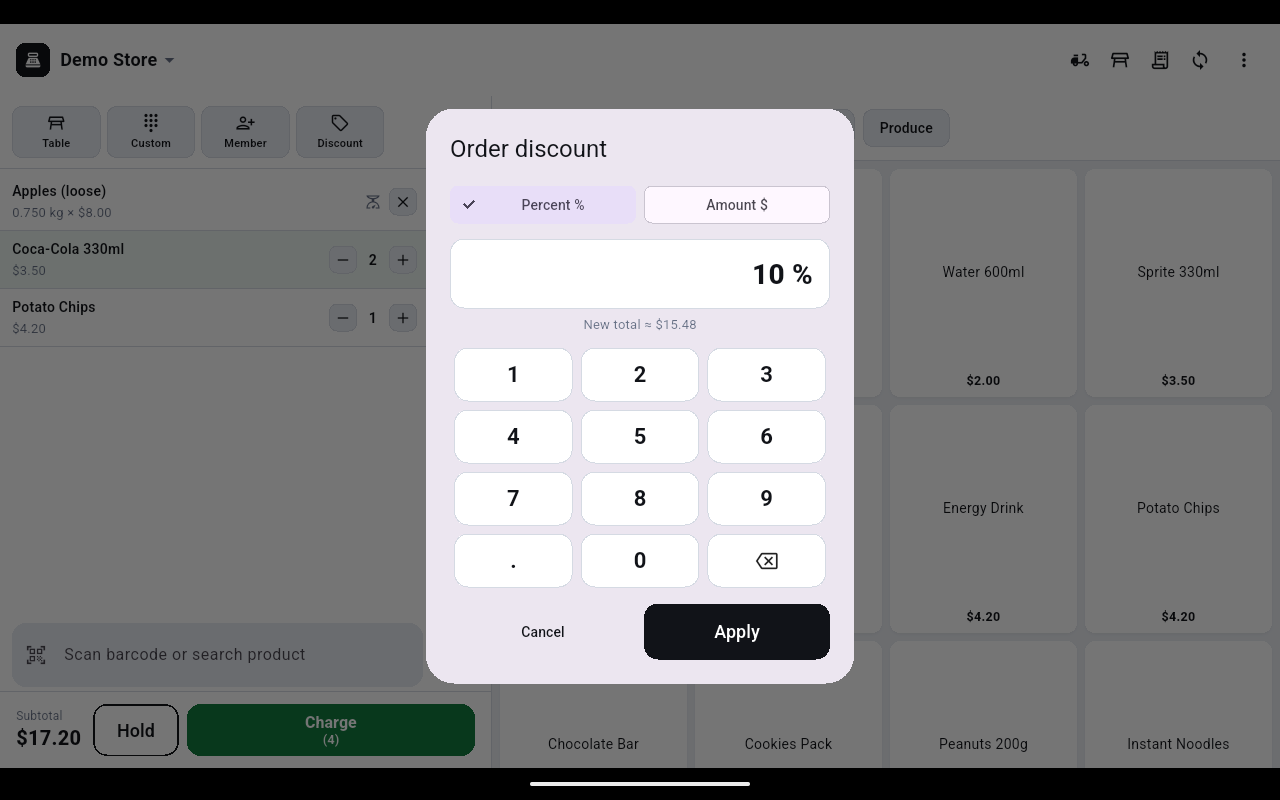
- Tap Discount.
- Choose Percent % or Amount $ and key the figure. The line under the box previews the result — New total ≈ $15.48.
- Tap Apply. The tile turns green and shows the discount, and Discount −10% appears under the subtotal in the footer.