Discounts and surcharges
Per-branch task. These are whole-order adjustments the cashier can apply at checkout — a staff discount, a card surcharge.
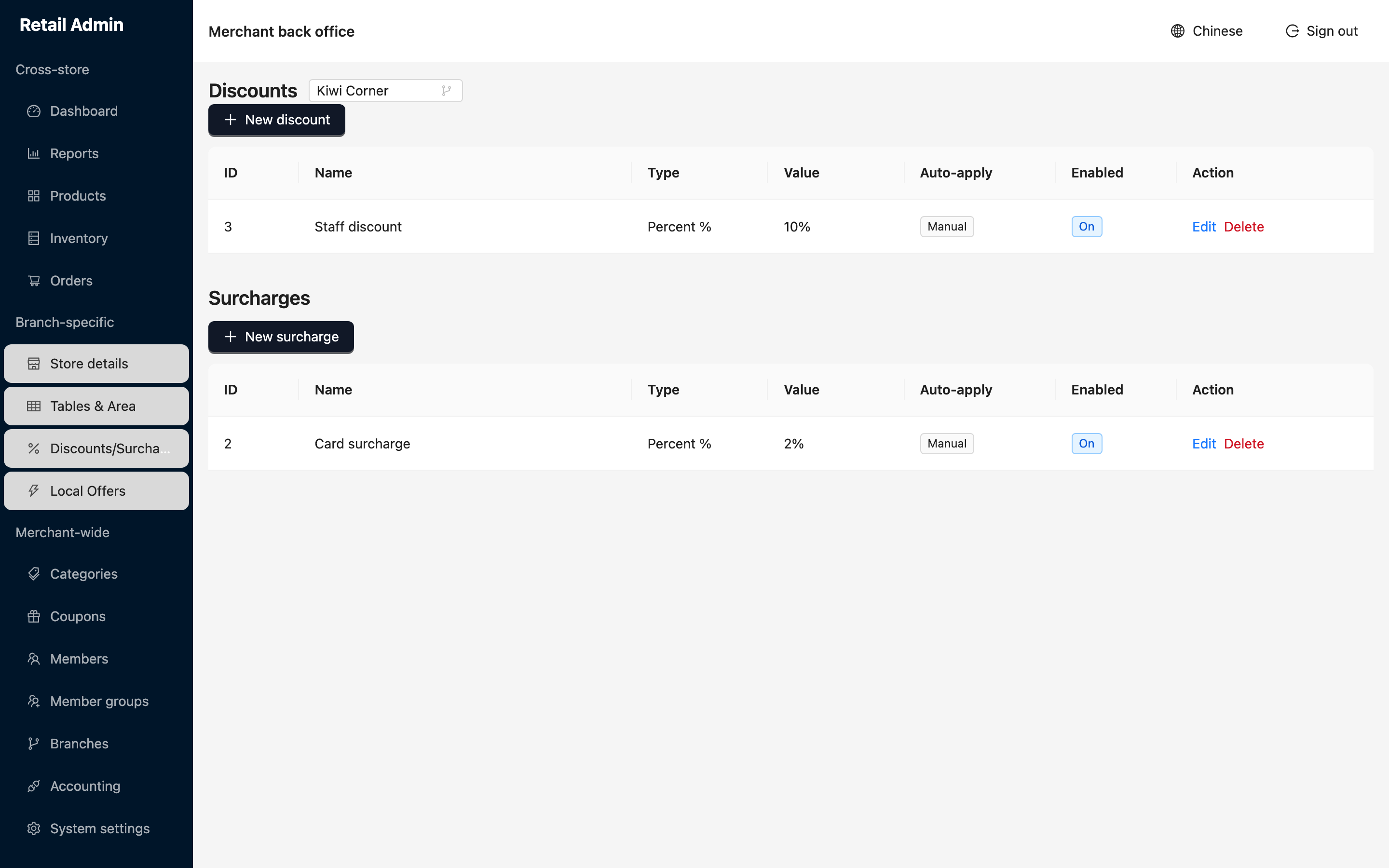
- Click Discounts/Surcharges and check the branch in the picker beside the Discounts heading.
- Click New discount (or New surcharge in the lower section).
- Enter the Name the cashier will see, choose Percent % or Fixed $ and type the Value.
- Tick Auto-apply only if it should land on every order with no choice at the register; leave it clear for something the cashier picks by hand.
- Leave Enabled on On, optionally set a Start and End date, and click OK.
- The row appears with an Auto or Manual tag and an On/Off tag. Use Edit to change it or Delete to retire it.
These are order-level. A discount bound to a single product is a markdown code, set up in the product's own dialog.