Building a sale
Getting items into the cart — by tapping, searching, scanning, weighing, or keying an amount.
Add an item
- Tap a category chip to narrow the grid, or leave it on All.
- Tap the product tile. The item drops into the cart with quantity 1 and the Subtotal and Charge count update.
- Tap the same tile again, or use + and − on the cart line, to change the quantity. Taking a line down to 0 removes it.
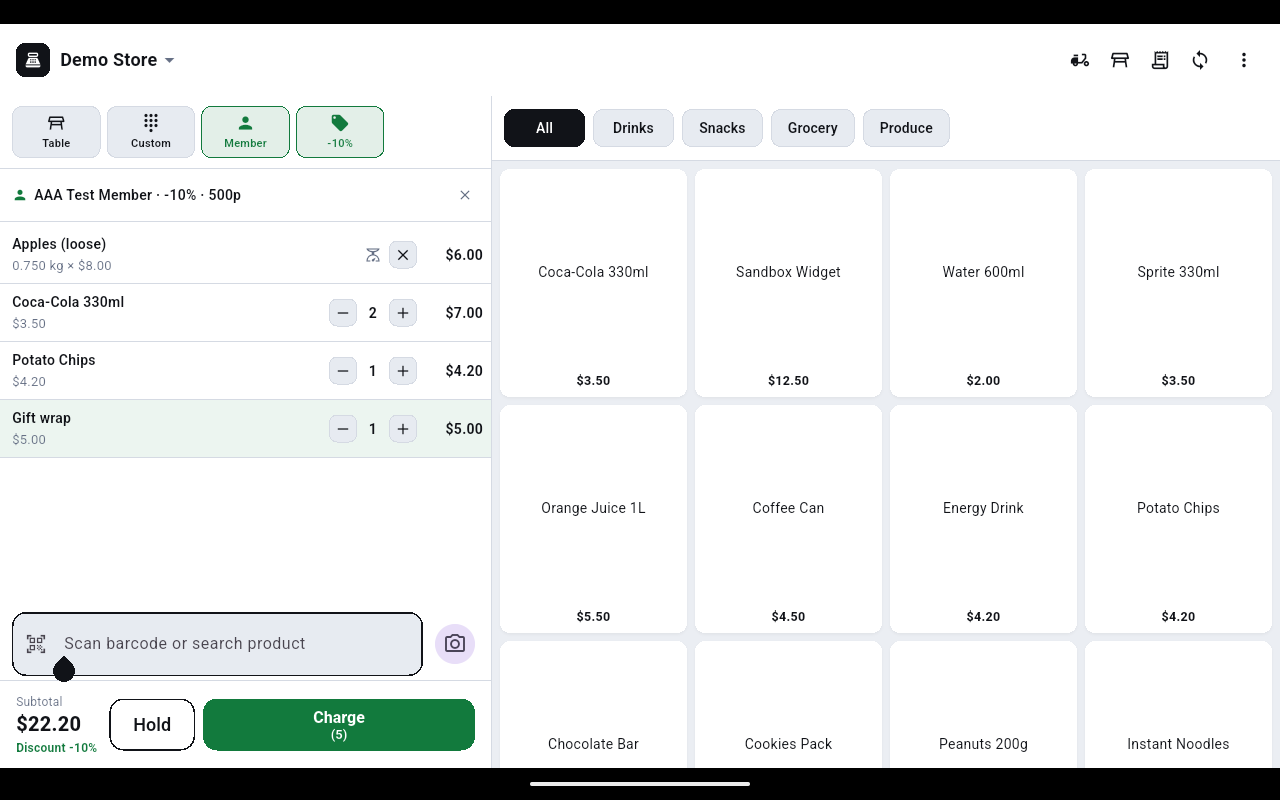
Find an item you cannot see
- Tap Scan barcode or search product and start typing part of the name. The grid filters down as you type.
- Tap the matching tile to add it, then tap the × in the search box to clear the filter and get the whole range back.
A barcode scanner types into the same box, so scanning an item adds it without you touching the screen. To use the device camera instead, tap the round camera button beside the box; that opens the Scan barcode screen, which has a torch toggle at the top right and a running Added count at the bottom.
Items sold by weight
- Tap the tile — it shows a price per kilo rather than a flat price.
- A dialog opens with the product name, the per-kilo price and a Weight (kg) box. Key in the weight from the scale, for example
0.750. - Tap Add. The cart line reads
0.750 kg × $8.00with the calculated line total.
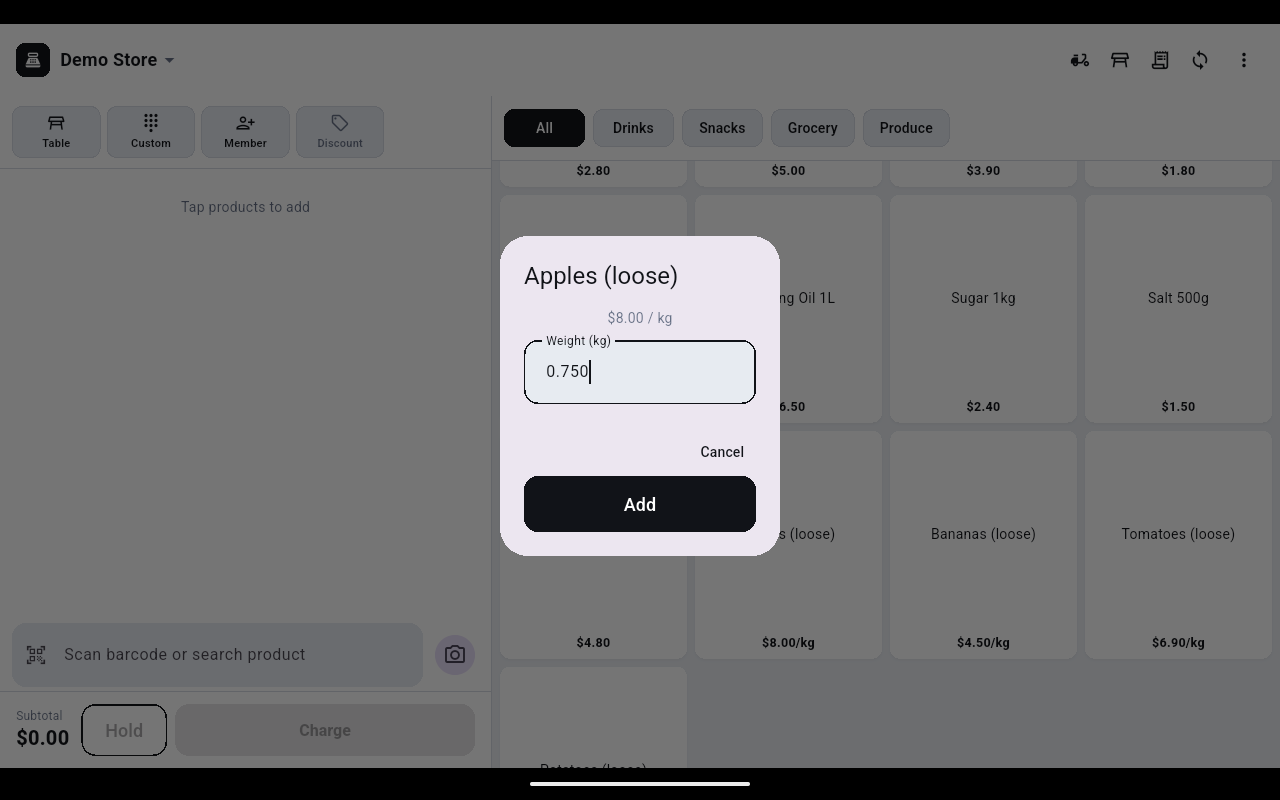
A weighed line has no + / − buttons — the quantity is the weight. Use the × button on the line to take it out and ring it again at the right weight.
Charge an amount that is not a product
- Tap Custom.
- Type what the charge is for in Name (optional) — this is what prints on the receipt.
- Key the amount on the keypad and tap Add.
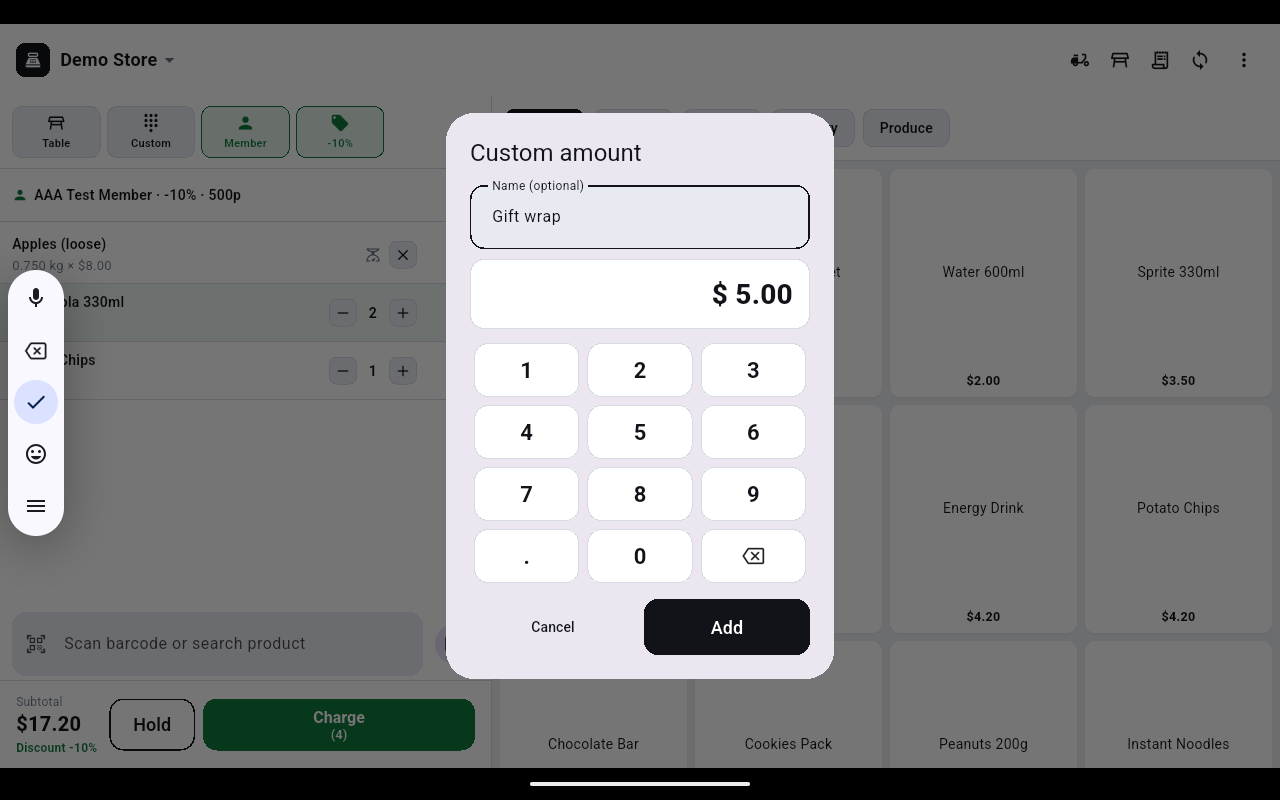
If a dialog is open, do not use the device back gesture to dismiss the keyboard — it closes the dialog and your next taps land on the product grid, adding items you did not mean to add. Check the cart before you charge.