In-store orders
Every sale taken at the register. You cannot ring up a sale here — this is where you look one up, take payment on an open one, refund it or void it.
Find an order
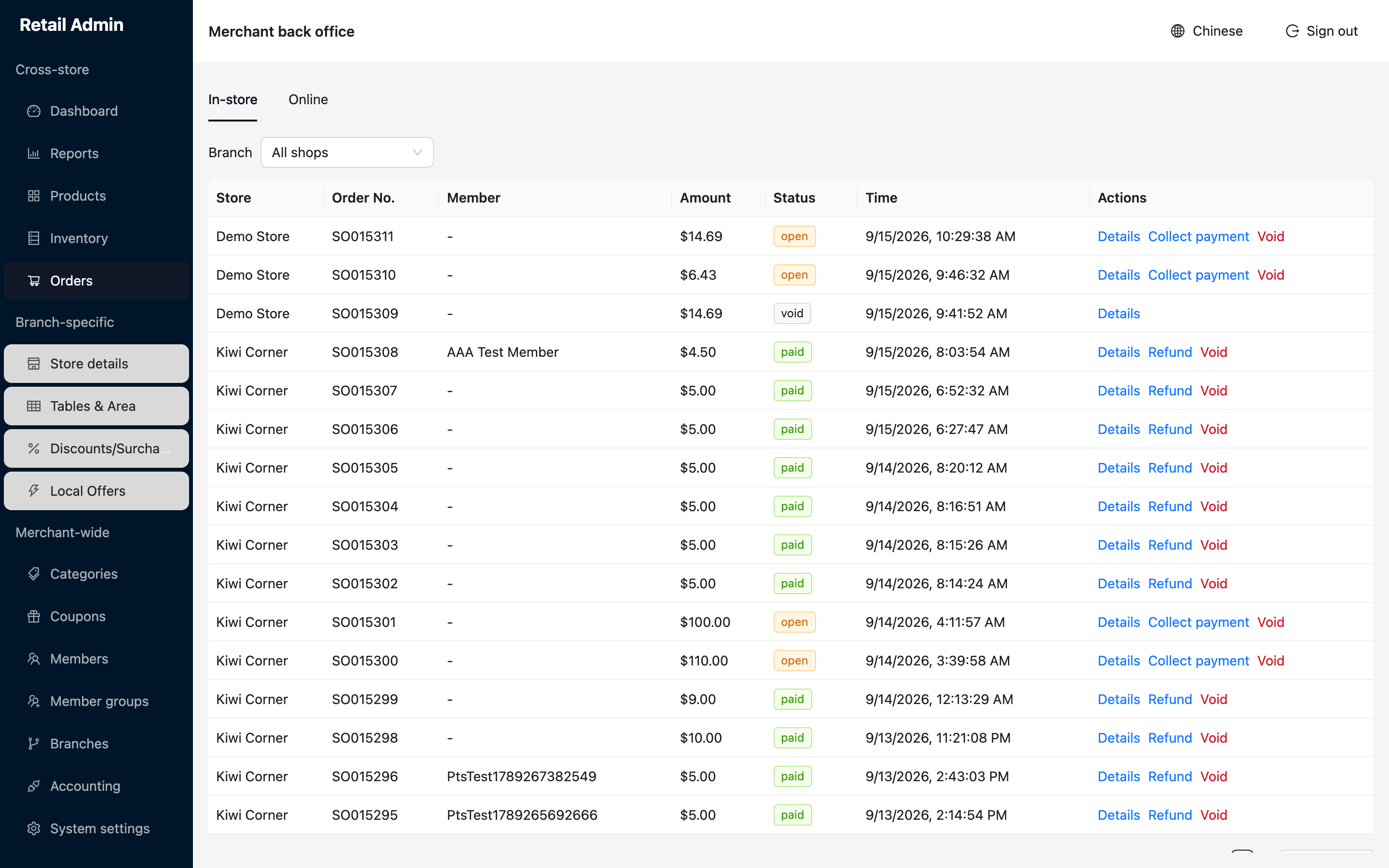
- Click Orders. The In-store tab opens first.
- Use the Branch dropdown to narrow to one branch, or leave it on All shops to see every branch with a Store column.
- Read the Status tag: open means unpaid, paid means settled, void means cancelled. The actions on each row follow from that status.
Look inside an order
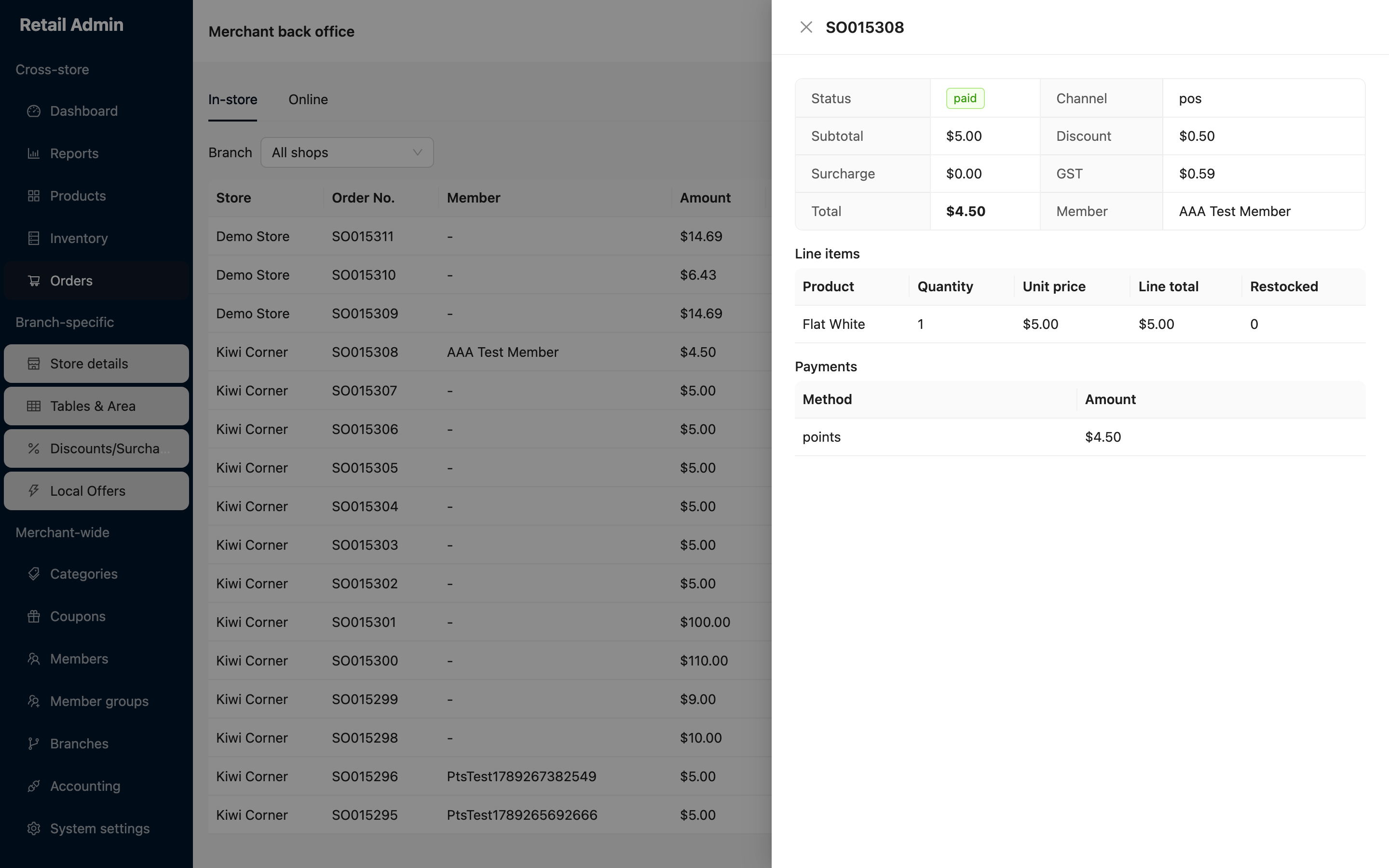
- Click Details. A drawer opens showing status, channel, subtotal, discount, surcharge, GST, total and the member, if any.
- Below that, Line items lists each product with quantity, unit price, line total and how much has been Restocked.
- Payments lists the methods the order was settled with and the amount on each. If the order has been refunded, a Refunds table follows with the method, amount and reason.
Take payment, refund or void
- Collect payment on an open order asks you to confirm — the prompt names the order and the amount due — and records it as a cash payment.
- Refund on a paid order opens a box pre-filled with the order total. Lower the figure for a partial refund, then click OK.
- Void asks Void order …? and warns that it will restock inventory and refund any stored-value payment. Click OK to confirm.
- After any of the three the list reloads and the order's detail drawer reopens showing the new state.
Refunds and voids are immediate and cannot be reversed from here. Read the order number in the prompt before you confirm — the rows look alike.