The main screen
The one screen you spend the whole shift on. Learn where things are before your first customer.
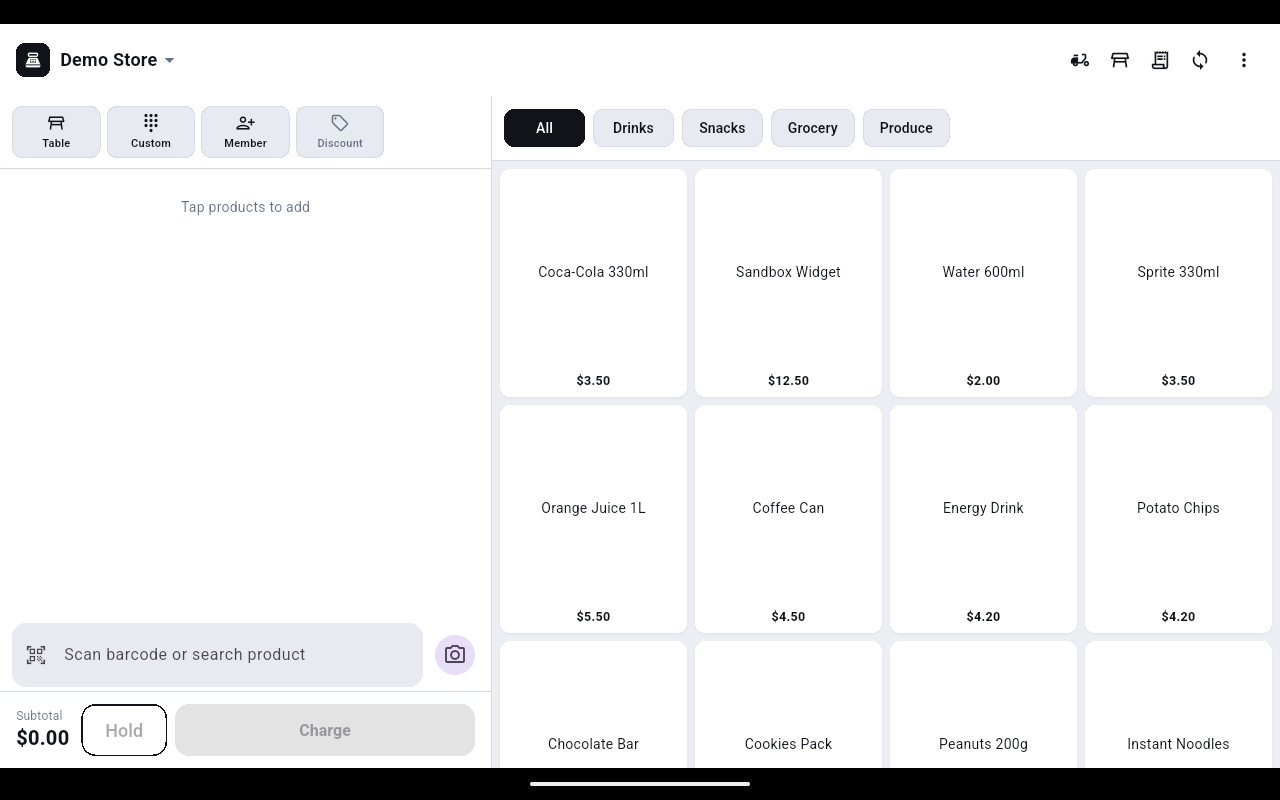
Left side — the cart
- Four tiles across the top: Table, Custom, Member and Discount. A tile turns green when something is attached to the sale.
- The cart lines sit under them. An empty cart says Tap products to add.
- Scan barcode or search product at the bottom takes a scanner or typed text. The round camera button beside it opens the Scan barcode screen.
- The footer shows Subtotal, a Hold button and the green Charge button. Charge carries the number of items in brackets.
Right side — the products
- Category chips run along the top, starting with All. Tap a chip to show only that category.
- Each tile shows the product name and its price. Items sold by weight show a per-kilo price such as
$8.00/kg, and an item with no stock left is greyed out and labelled Sold out. - Swipe the grid up and down to reach the rest of the range.
Top bar
The icons at the top right, left to right, are Delivery, Tables, Orders, Sync and the ⋮ menu. A sixth icon with a number badge appears to their left as soon as you hold a sale — that is Held sales.
The ⋮ menu
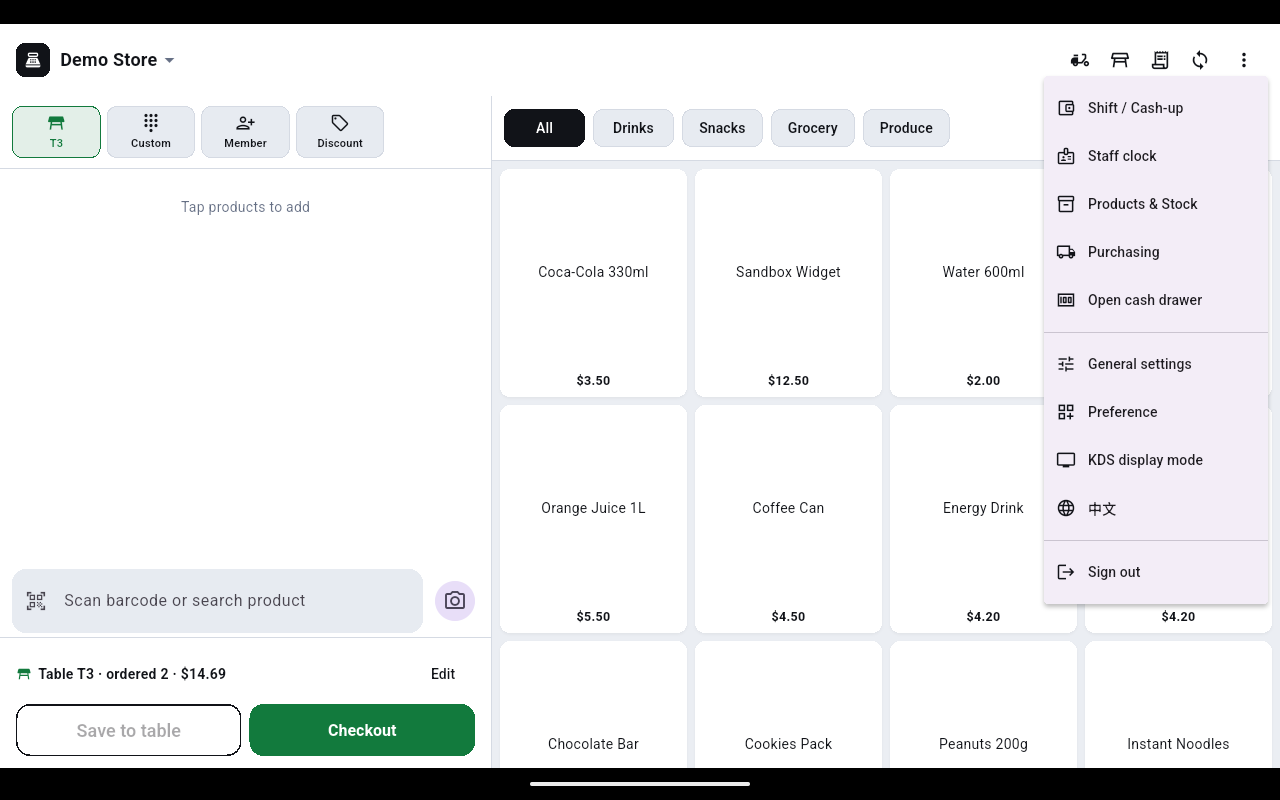
| Menu item | What it is for |
|---|---|
| Shift / Cash-up | Open and close the shift, record cash in and out, print the Z report. |
| Staff clock | Staff clock in and out with a PIN. |
| Products & Stock | Product list and stock counts held on the till. |
| Purchasing | Goods received from suppliers. |
| Open cash drawer | Pops the drawer without making a sale. |
| General settings | Receipt header, printers, card terminal, customer and kitchen screens. |
| Preference | How this till looks and which selling tools are switched on. |
| KDS display mode | Turns this device into a kitchen screen. |
| Sign out | Returns to the sign-in screen. |
The item below KDS display mode switches the app language; it always shows the language you are not currently using.