Pushing sales to your accounting system
Owner task. Paid orders can be posted to your own accounting system as tax invoices so you are not re-keying takings.
Connect
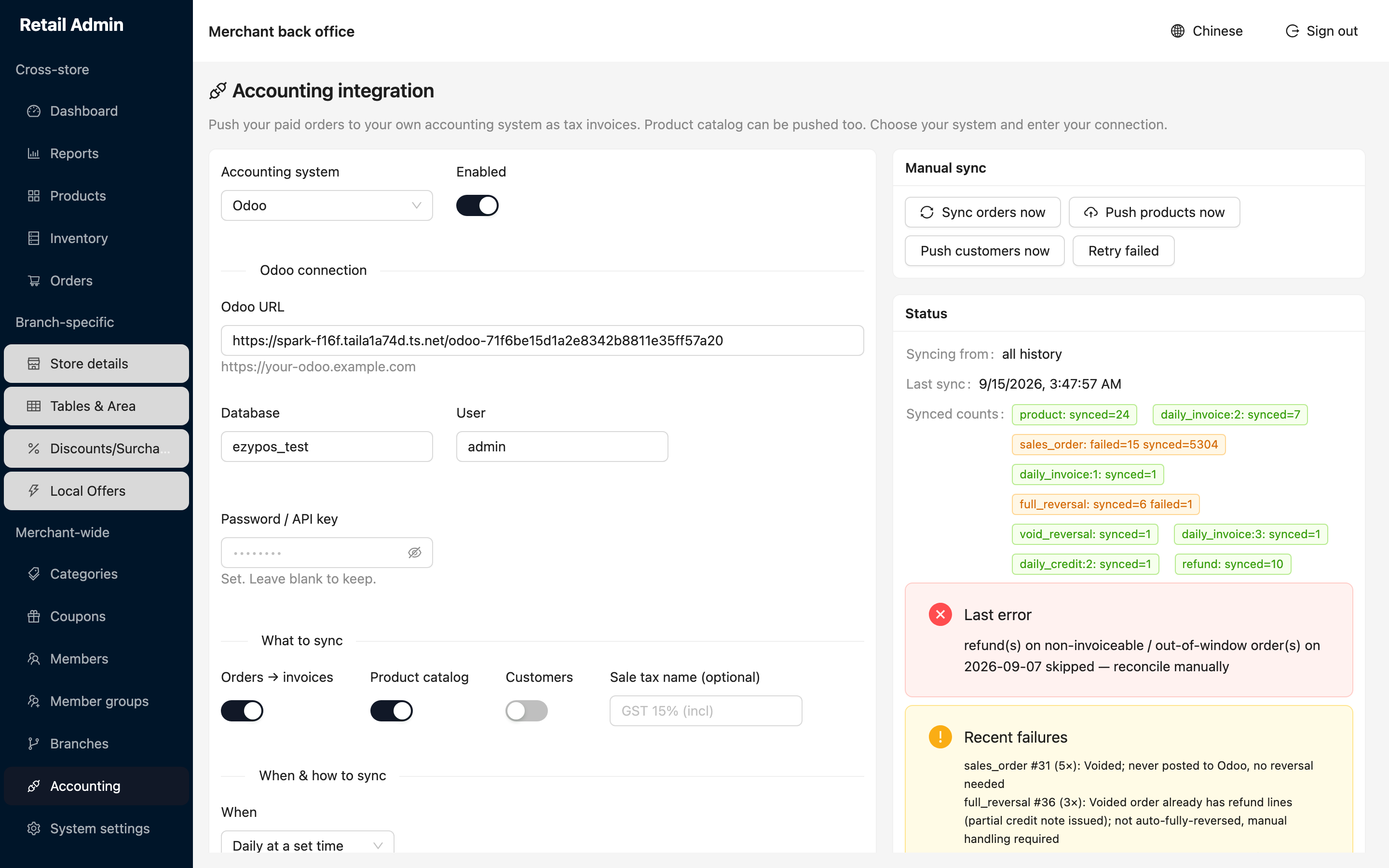
- Click Accounting.
- Choose the Accounting system. Odoo is available; NetSuite is listed as coming soon, and None turns the integration off.
- Switch Enabled on.
- Fill in the connection: the Odoo URL, Database, User and Password / API key. Once a key is stored the field shows dots and the hint Set. Leave blank to keep.
- Click Test connection before you click Save.
Choose what and when
- Under What to sync, switch on Orders → invoices, Product catalog and Customers as you need them, and name your Sale tax name if your accounts use a specific one.
- Under When & how to sync, set When: realtime pushes each order right after payment, daily runs once at a set time, and manual only runs when you click.
- For the daily option, set the Daily time in the store's timezone. It processes the previous day, and 00:30 is the recommended value.
- Set Invoice granularity — one invoice per order, or one combined invoice per store per day.
- Click Save.
Run it by hand and check the result
- Use Sync orders now, Push products now or Push customers now to run a push immediately.
- Click Retry failed to have another go at the items that did not post.
- Read Status: Last sync gives the time of the last run, and Synced counts shows a tag per record type, green when everything posted and amber when some failed.
- Read Last error and Recent failures for what went wrong and how many times it was retried — each line names the record and the reason, such as an order whose store currency the integration does not support.
Anything listed under Recent failures is not in your accounts. Some of those cases — a voided order that already carries a partial credit note, for instance — say outright that they need manual handling, so work the list rather than assuming the next run clears it.