
NexPOS Merchant
NexPOS App — what your counter runs on
Ring up a sale, run a table, take any payment, refund it, cash up. Built for a Sunmi terminal and for staff who were shown it once.
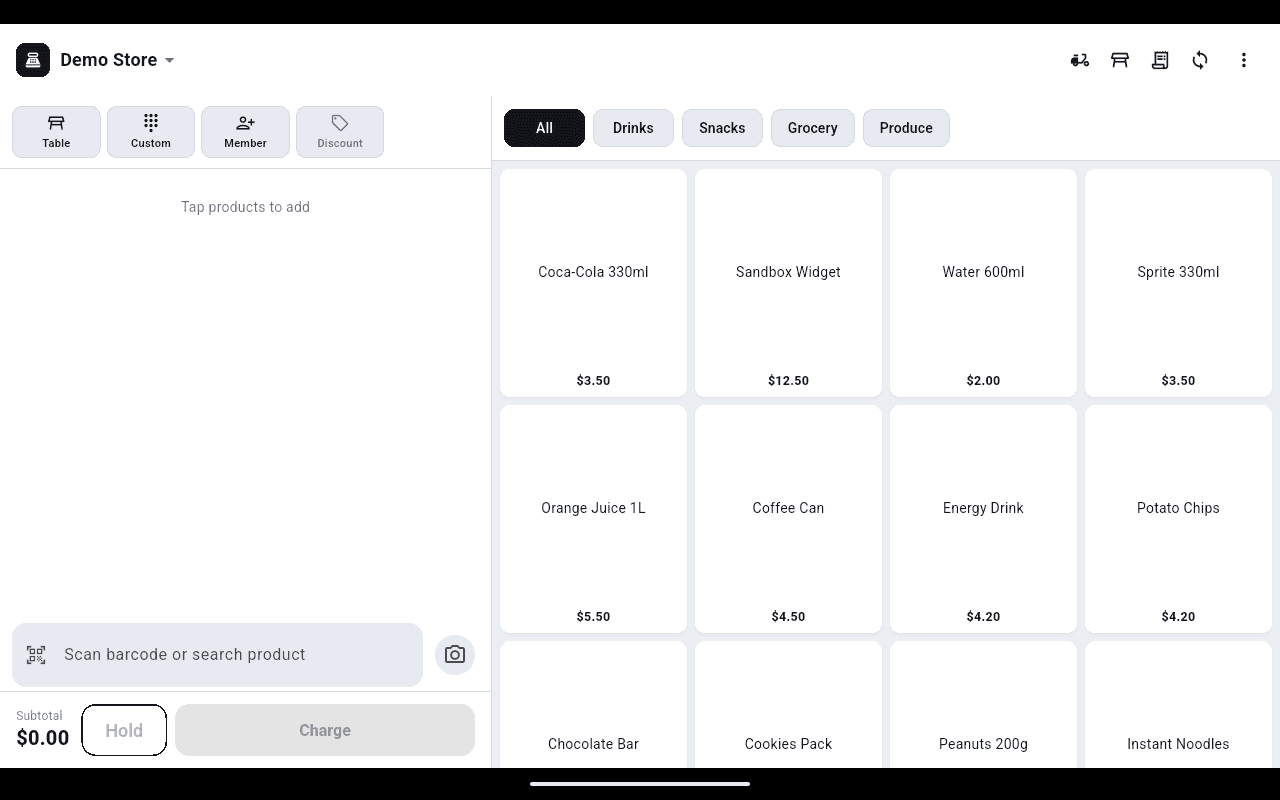
One screen holds the whole job. Everything that is not part of ringing up a sale — shift, stock, settings — sits behind a single menu, out of the way of the queue.
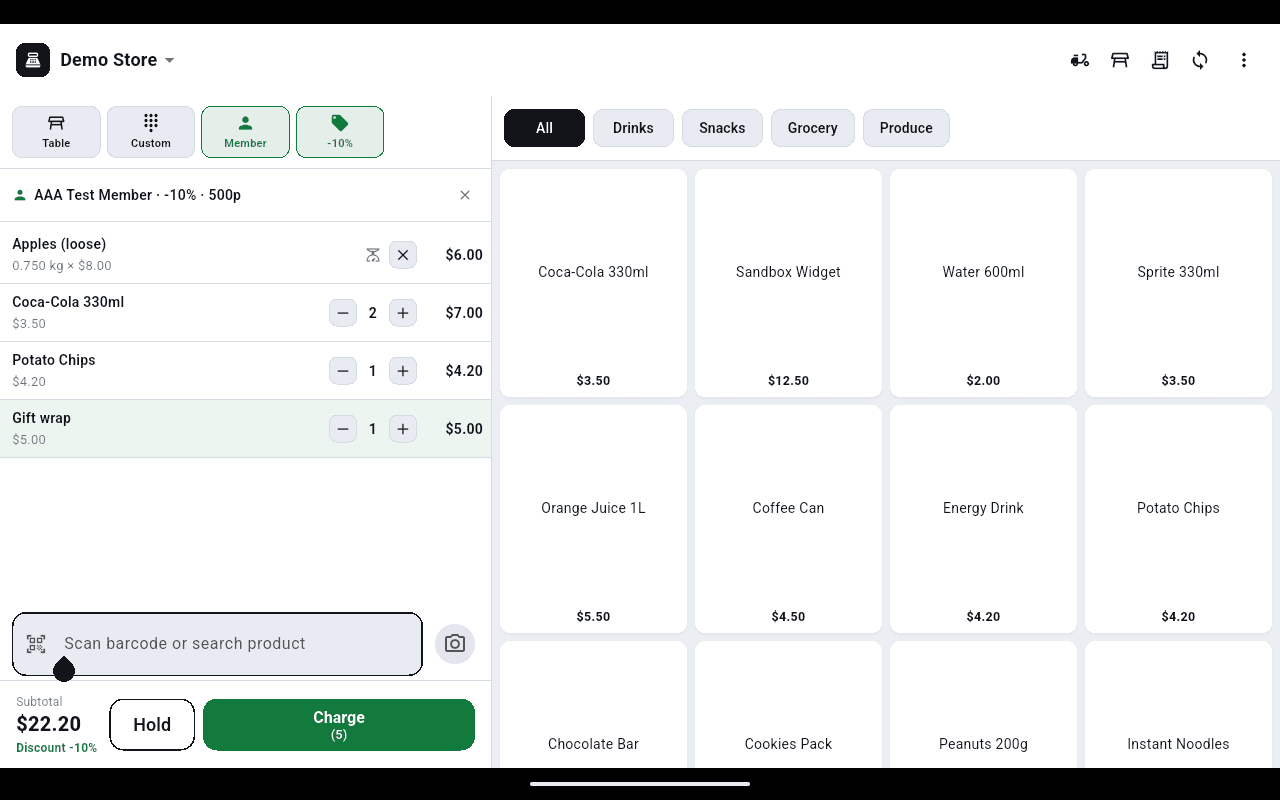
The register, mid-sale: weighed line, custom line, member attached, order discount applied.
One screen for the whole shift
Cart on the left, products on the right. Tap a tile, scan a barcode, type part of a name, key a weight off the scale, or charge an amount that is not a product at all. The green button carries the item count so the cashier always knows what they are about to charge for.
- Category chips, and a grid that says Sold out rather than letting staff ring up air
- Items priced per kilo ask for the weight before they join the cart
- Custom amounts for delivery, a repair or a deposit, named on the receipt
- A barcode scanner types straight into the search box — no screen taps at all
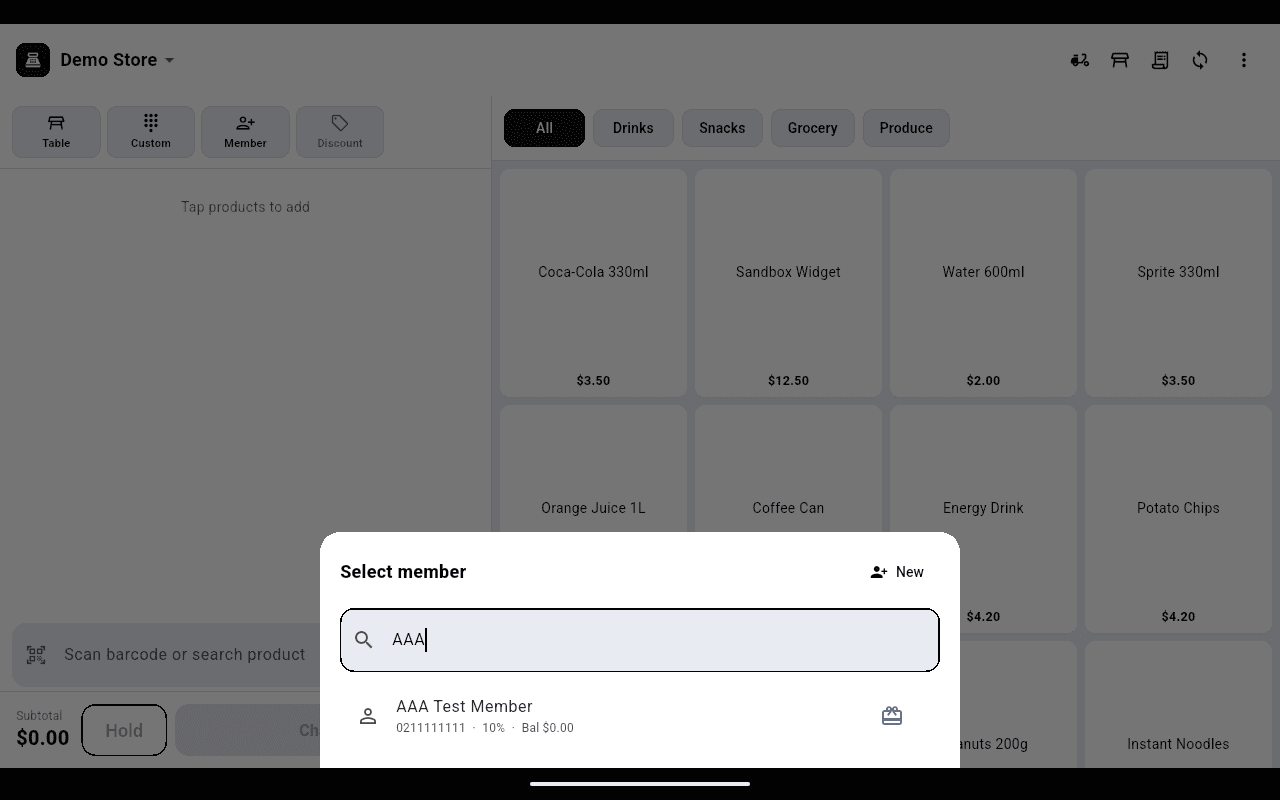
Members carry their discount, points and balance across every one of your stores.
Customers, discounts and held sales
Attach a member and their standing discount comes with them, along with their points balance and stored value. Sign a new one up at the counter in two fields. Park a sale under a name when someone goes back for one more thing, and serve the next person in the meantime.
- Search a member by phone, name or the number on their printed card
- Whole-order discount by percent or dollar, previewed before it is applied
- Held sales keep their items, member and discount until they are recalled
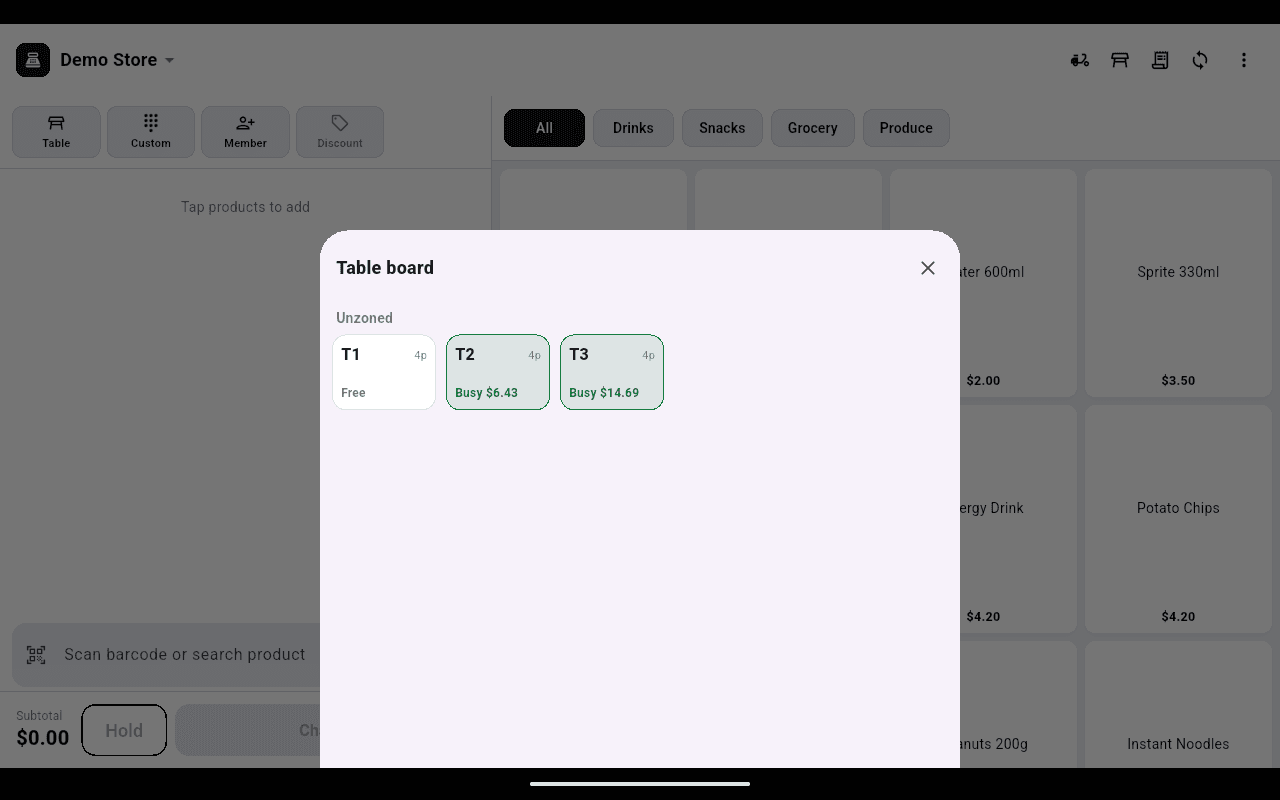
The board is the fastest way to see what is still open before you cash up.
Table service without a second system
A board of the room shows what is free and what is running, with the live total on every occupied table. Save a round to a table and the kitchen ticket goes out with it. Add rounds, correct a mistake line by line, then settle the whole tab at the till.
- Areas and tables laid out to match the room
- Edit an open tab with removed lines struck through before you save
- Anything the kitchen has already made is locked, so it cannot quietly vanish
- Void a whole table when a booking walks
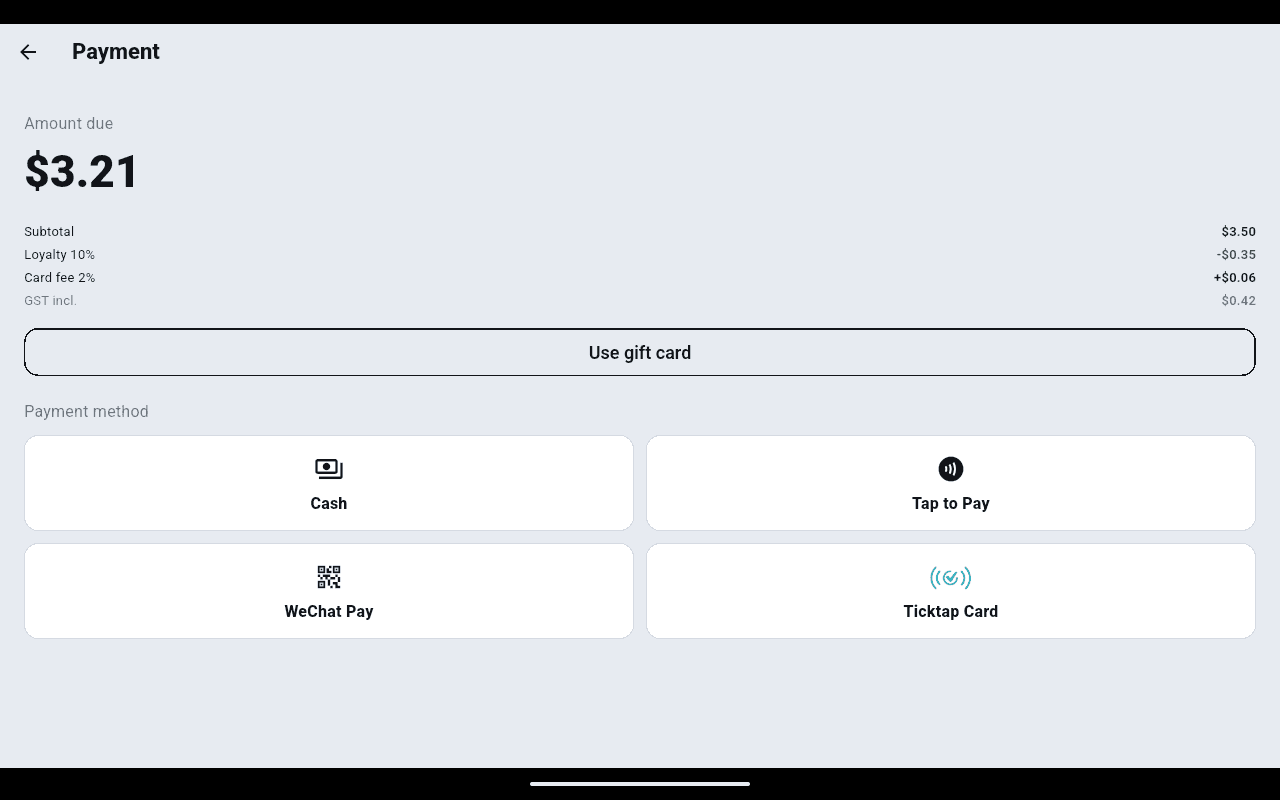
Tap to Pay, a reader, a wallet QR or a member balance — the arithmetic sits above the tiles.
Every way your customers pay
The payment screen shows what to collect and how the till got there — subtotal, each discount on its own line, any card surcharge you have set, and the GST already inside the total. Then take it however the customer wants: tap a card straight on the terminal, scan a wallet QR, or put it on a member's balance.
- Tap to Pay on the terminal itself — contactless cards and phones, no extra hardware
- Or a paired card reader / EFTPOS terminal where you use one
- WeChat and Alipay by showing a QR the customer scans
- Cash with quick keys and the change worked out as you type
- Gift cards and loyalty points, part-paid against the balance owing
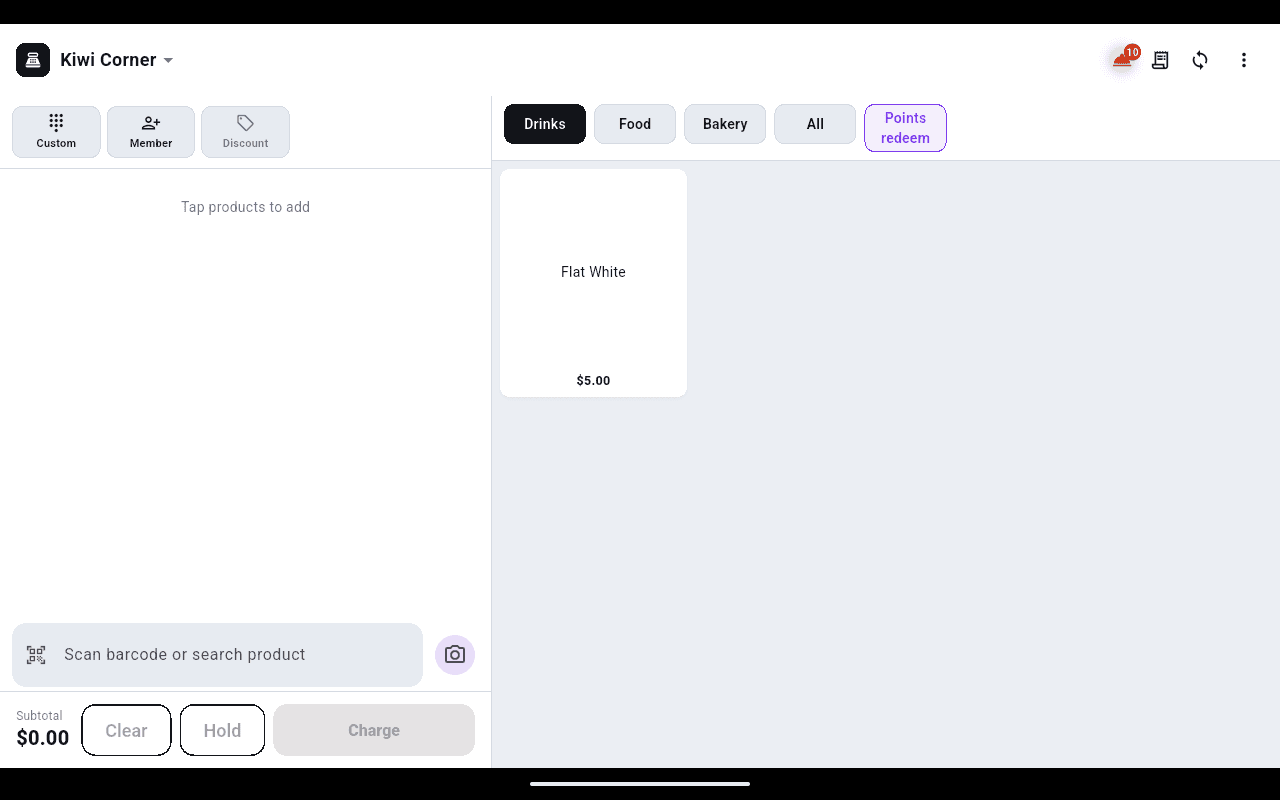
A dedicated Points redeem category sits at the end of the category bar.
Points, gift cards and member wallets
Members earn points as they spend and redeem them right at the till — there is a category just for what points can buy. Their stored value and gift balance live on the same account, so a regular can top up once and pay from it next time, and a tap of their card brings up who they are.
- A Points redeem category, so staff can see what a balance covers
- Points or a member's stored value taken as part-payment
- Top up a member's balance at the counter as its own paid order
- Tap a member's card to bring them up — no typing a number
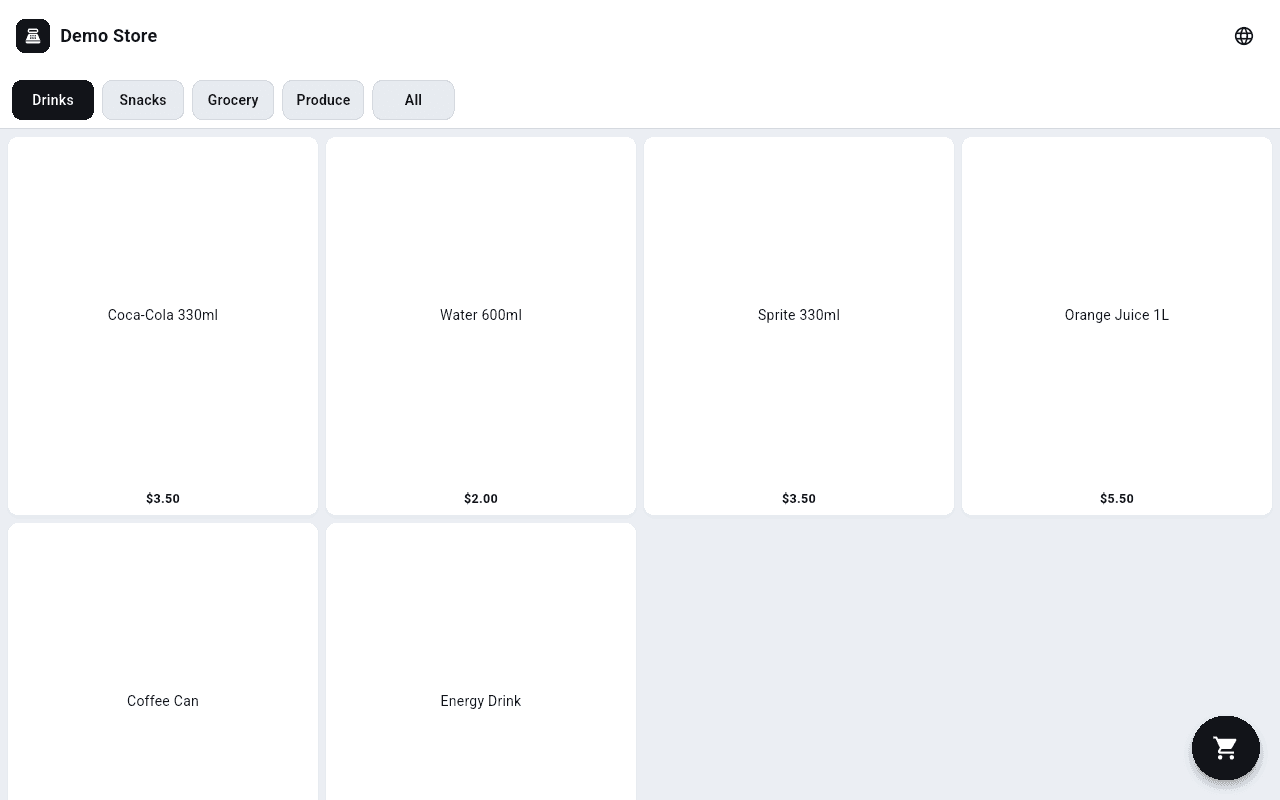
The same menu as the counter, laid out for a customer to order on their own.
Turn the terminal into a self-order kiosk
Switch any terminal into an unattended kiosk and let customers do it themselves — browse the menu, build their order and pay by tapping their card, with no one at the screen. It is the same catalogue and the same prices as the counter; leaving the kiosk takes a manager PIN.
- A full-screen, customer-facing menu behind a Tap to order start screen
- Customers add items and check out on their own
- Pay by tapping a card — contactless, no cashier
- Locked into the kiosk until a manager PIN unlocks it
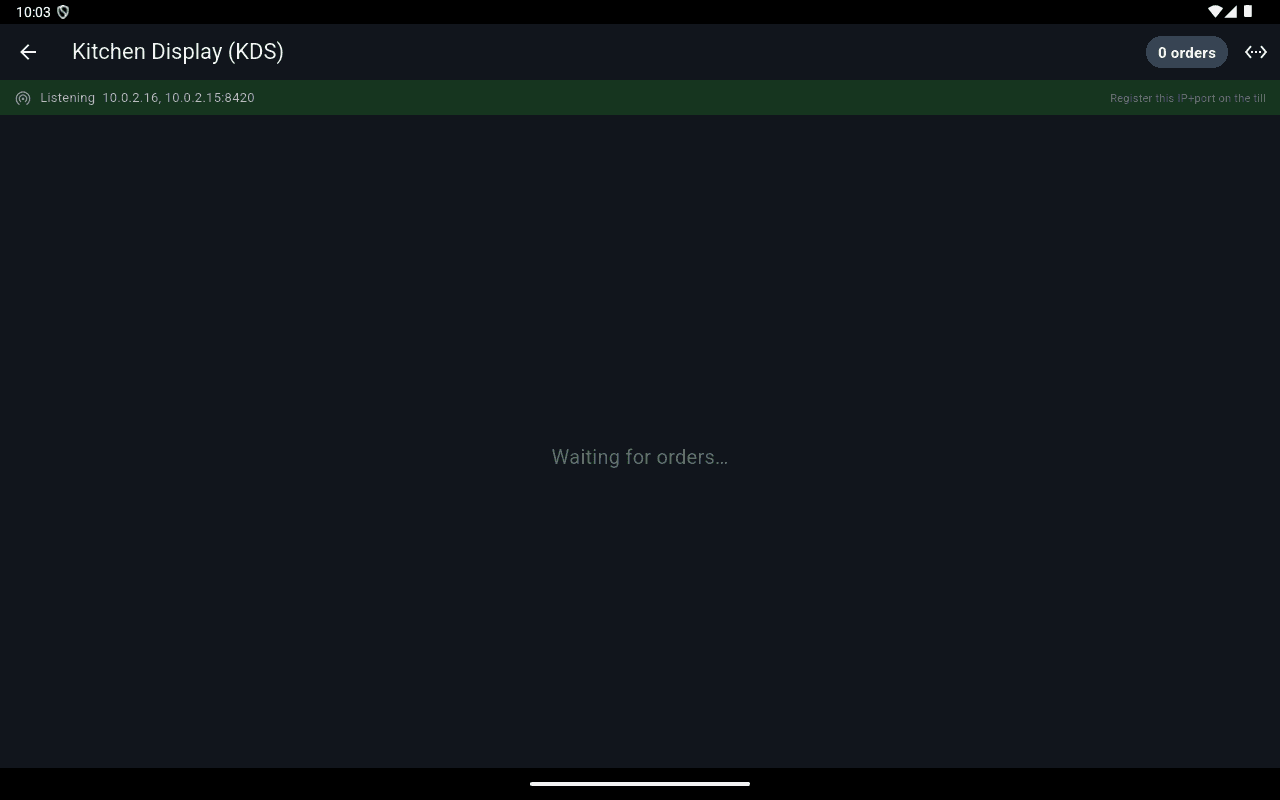
Tickets land on the pass the moment the till sends them.
A kitchen screen that keeps up
Put a spare device on the pass as a kitchen display. It listens on your network and shows each order the moment the till sends it, so the kitchen works off a screen instead of a stack of paper tickets.
- Orders appear the instant the cashier sends them
- Runs on any spare device on the same network
- A live order count, so nothing slips past
- A backup printer can still sit behind it
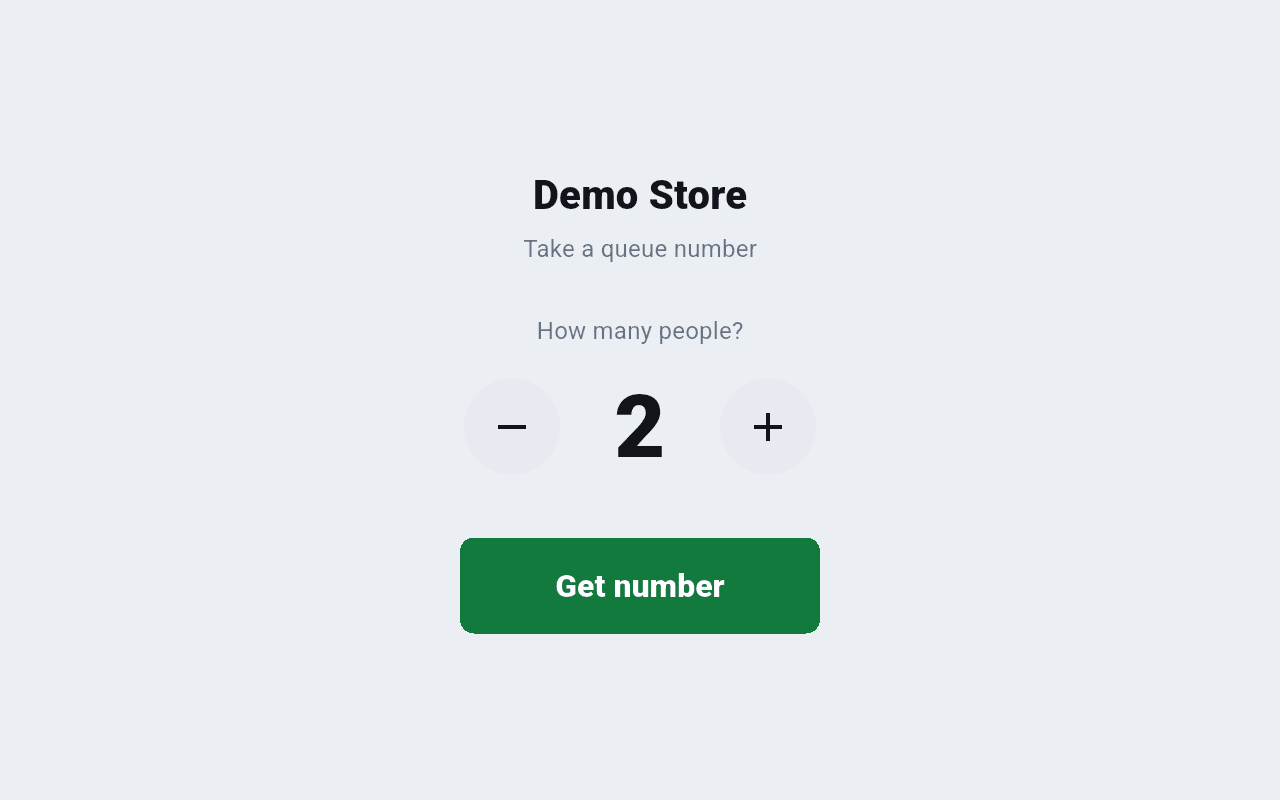
Customers take their own number; no one has to mind the queue.
Take-a-number for a busy counter
Set a device by the door as a queue station. Customers tap how many are in their party and take a number — printed, or shown on screen — so a line sorts itself out without anyone standing guard over it.
- Customers take their own number in one tap
- Party size captured with each ticket
- A number on the screen, or printed if a printer is set
- Issues numbers only — no ordering or payment on this device
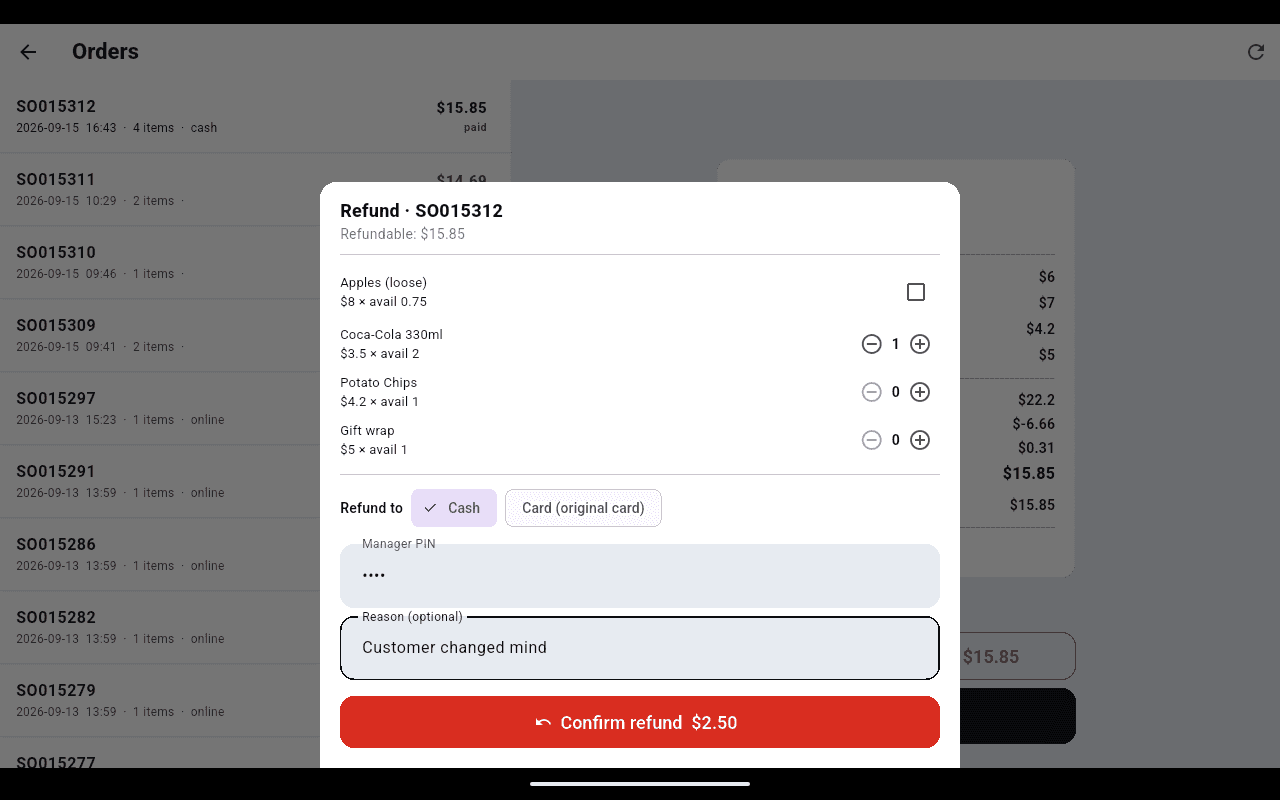
The button stays greyed out until a manager PIN is entered.
Refunds that need a manager
Look up any order from the top bar and get the receipt back on screen. Refund the whole thing or just the lines coming back, to cash or to the original card — and only with a manager PIN, so it is not a decision a busy cashier makes alone.
- Refunds go back at what the customer actually paid, discounts included
- Card refunds return to the original card on the rail it was taken on
- A pending card refund can be re-checked, even after the app restarts
- Reason recorded against the order; reprint any receipt from the same screen
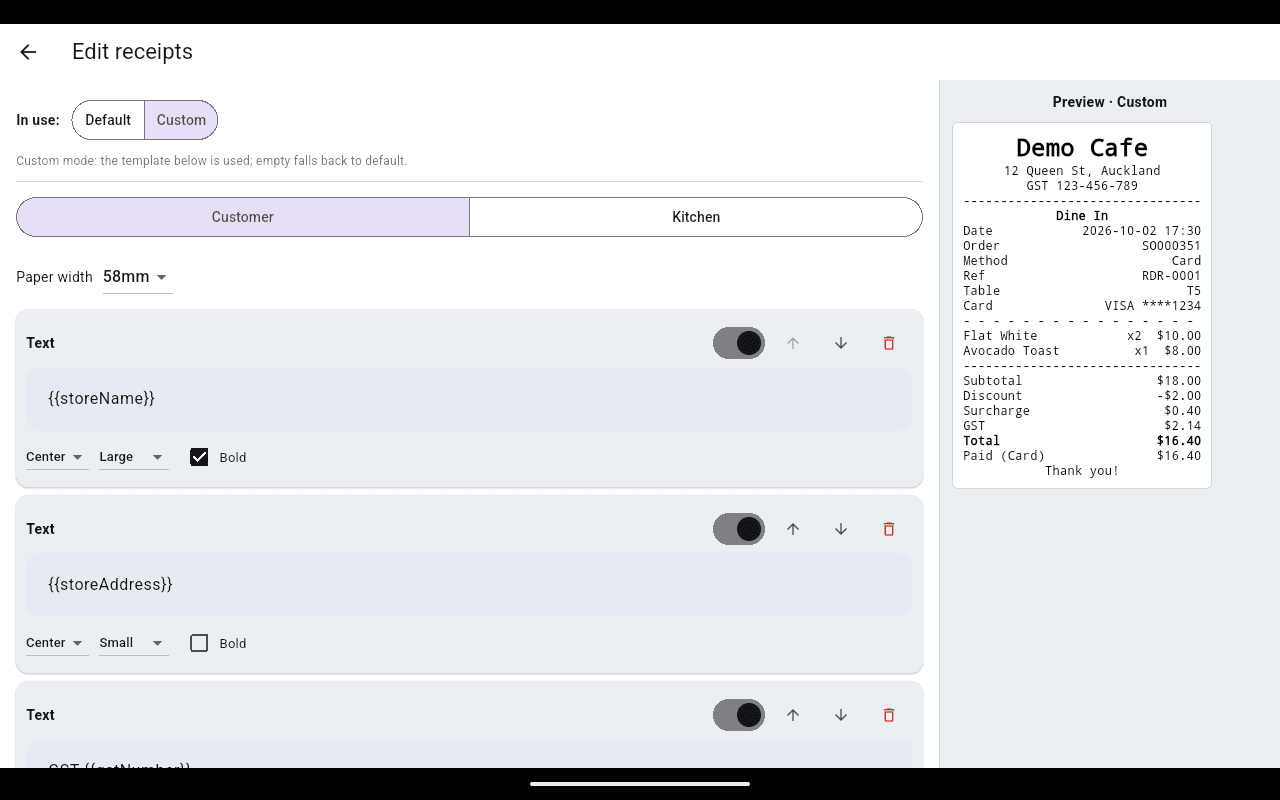
Build the receipt block by block; the preview on the right is what prints.
Make the receipt your own
Leave the receipt on the clean built-in layout, or switch to Custom and lay it out block by block — your store name, address and GST number, each line aligned, sized and bolded the way you want. A live preview shows exactly what will print, for both the customer receipt and the kitchen ticket.
- Built-in default layout, or a Custom template you build yourself
- Text blocks with placeholders like store name, address and GST number
- Per-block alignment, text size, bold, and reorder up or down
- Separate layouts for the customer receipt and the kitchen ticket
- 58mm or 80mm paper, previewed before anything prints
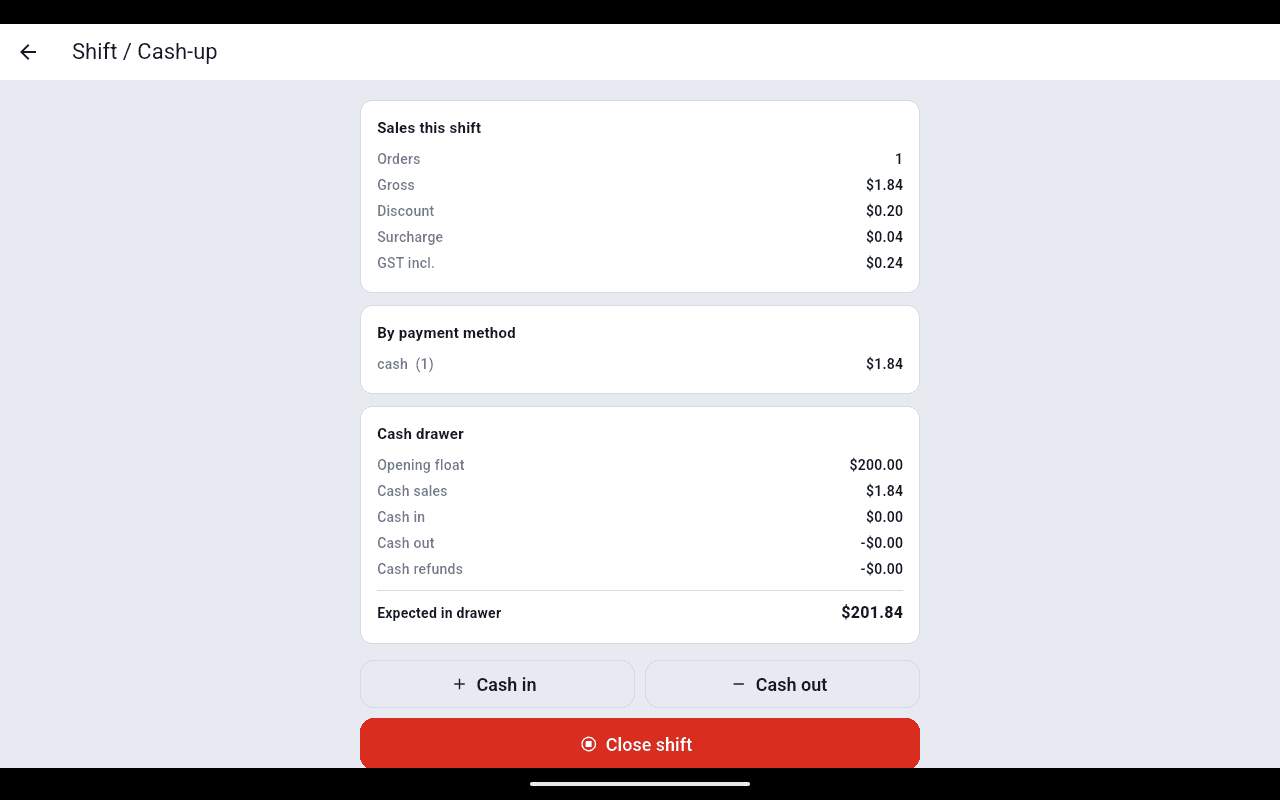
What sold, how it was paid, and what should be in the drawer right now.
Cash up and know where you stand
Open the shift with a float, record every note that moves in or out of the drawer, and close with a count. The Z report gives you orders, gross, GST, expected cash, counted cash and the variance — the number you hand over with the drawer.
- Sales this shift, split by payment method, live all day
- Cash in and cash out entries so the count still balances
- Staff clock in and out on a PIN, with cashier and manager roles
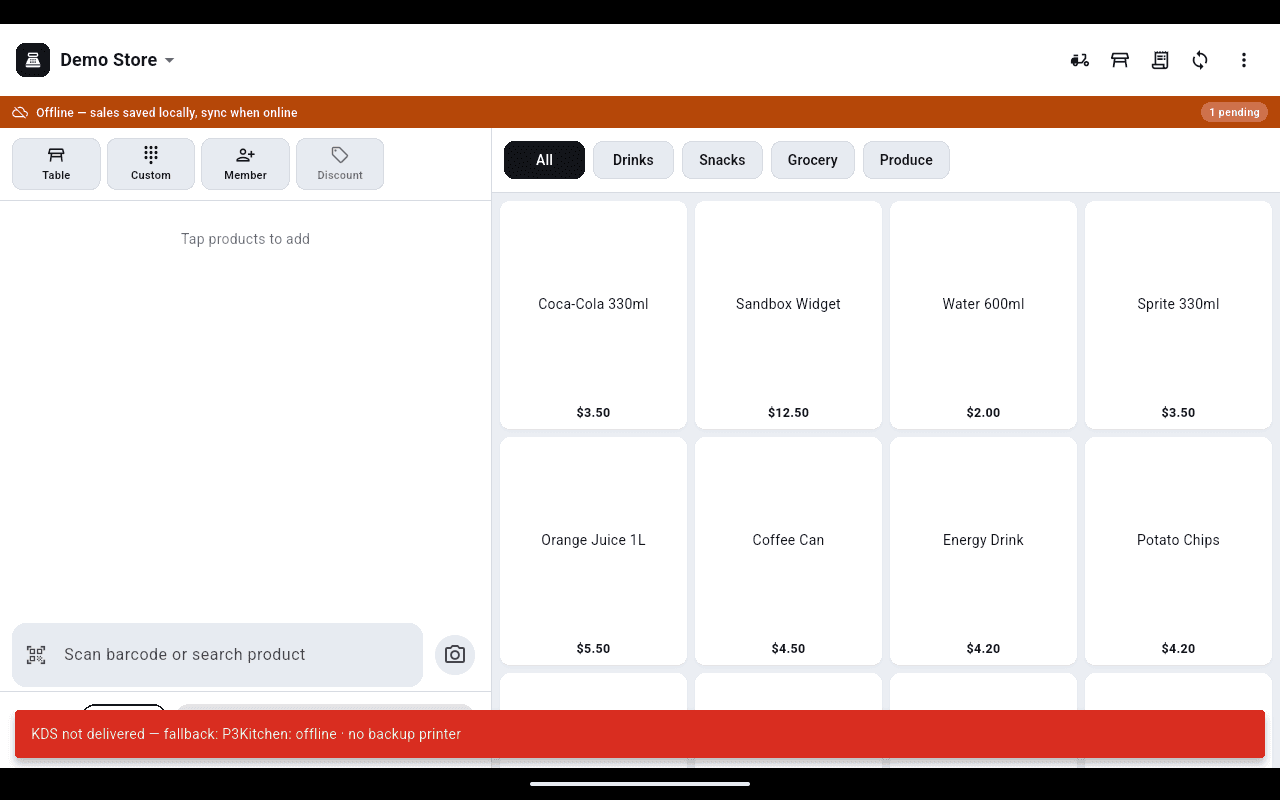
The bar stays up until every offline sale has been sent.
The internet drops, the shop keeps trading
When the till cannot reach the server it says so, keeps taking cash sales on the device, and counts what is waiting. Reconnect, tap sync, and the sales land in your orders and your reports as if nothing happened.
- An orange bar and a pending count, so nobody has to guess
- Offline sales are cash only and at shelf price — staff are told before they ring it up
- Nothing is lost between the outage and the sync
Every screen here is documented
The operations manual walks through the app screen by screen, with the same screenshots — hand it to a new cashier on their first shift.
Guides
Learn the NexPOS App
Step-by-step help, with the real screens as they appear.
Bring us your current merchant statement
Send it over and we will tell you what you would be paying on EzyBill. If we cannot beat what you are on, we will say so.